Club Sports participants must go through a registration process in order to officially join a club. While each program has different requirements, they all follow the same basic format; submission of information on a sequence of pages followed by approval by an administrator of club officer.
The pages below are examples of typical registration requirements. Schools may omit some of the pages below, or include others not shown. Registration pages can be accessed from the rec department website, and require login credentials – typically university credentials.
Registration
A progress wheel, message bar, and status indicator will provide information about where a member is in the registration process.
Personal Info
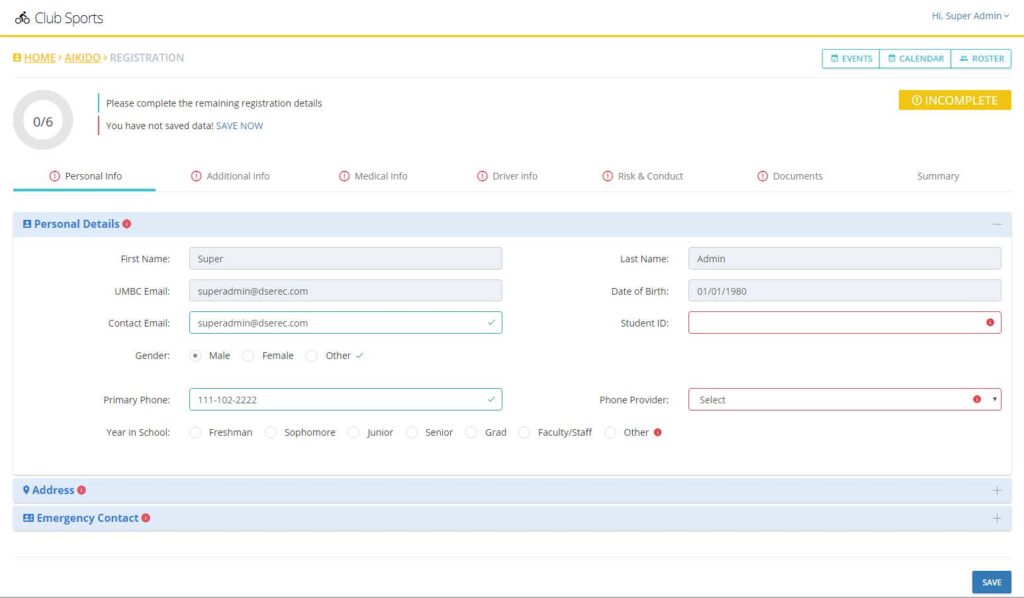
All registration processes start on the personal info tab. As with all tabs, filling each tab completely and clicking ‘save’ will move the user to the next tab in the sequence. Any required field that has not been completed will be outlined in red (seen above). The user will not automatically move to the next page until these fields have been completed.
Additional Info
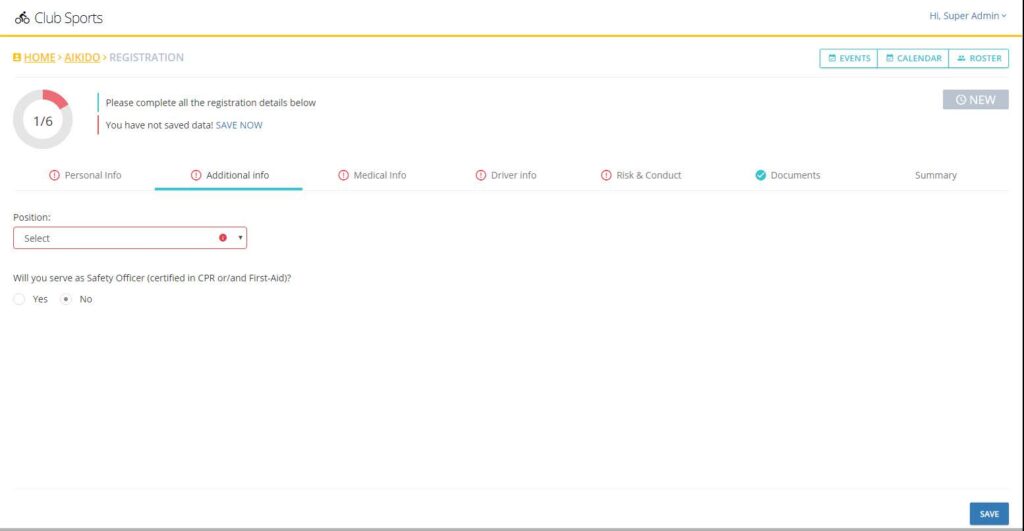
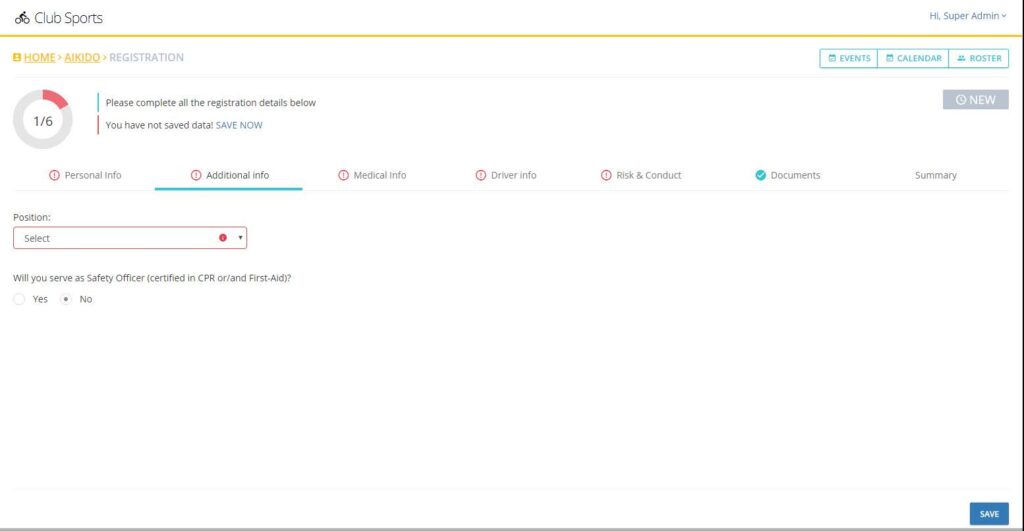
This page is typically used to determine who the club officers and safety officers are. Non-officers should select ‘Member’ from the dropdown menu, while officers should find their particular office listed. Safety officers will likely need to provide some additional information or documentation (more on documentation on the ‘Documents’ tab).
Medical Info
Highly customized to each school. Members will need to fill out each of the tabs on the left-hand navigation before moving on to the next main tab.
Driver Info
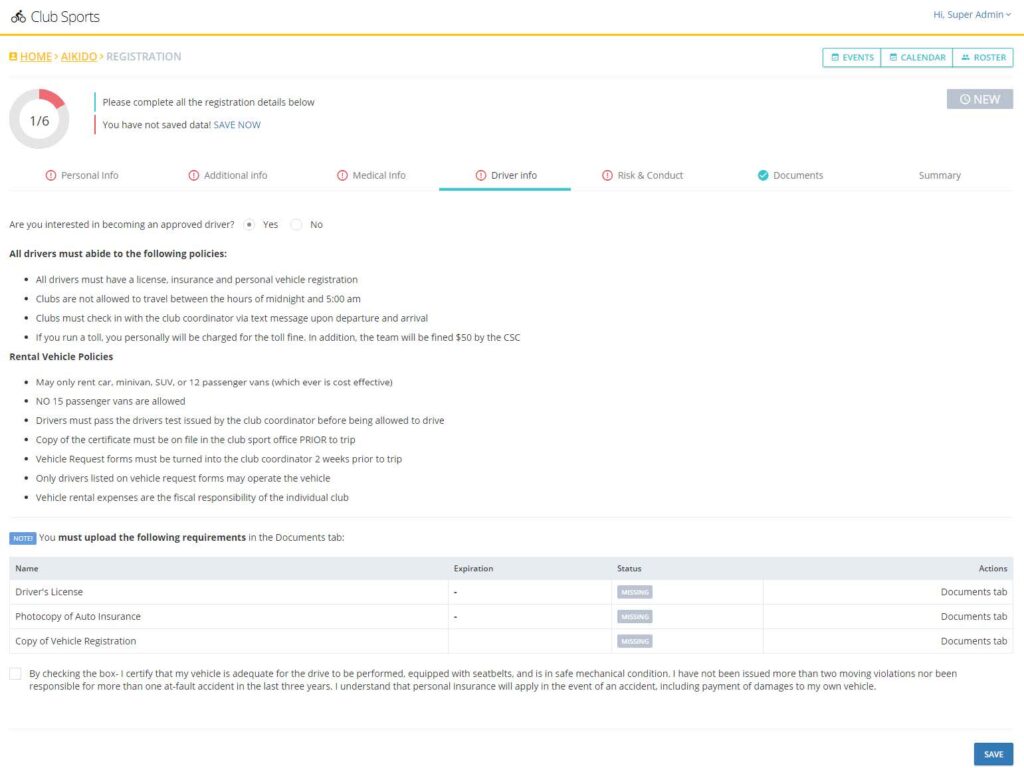
Indicate whether you intend to yourself and/or team members to club events. A ‘Yes’ answer requires you to provide information from your driver’s license. A ‘No’ answer will require to you acknowledge a statement confirming that you will not drive.
Risk & Conduct
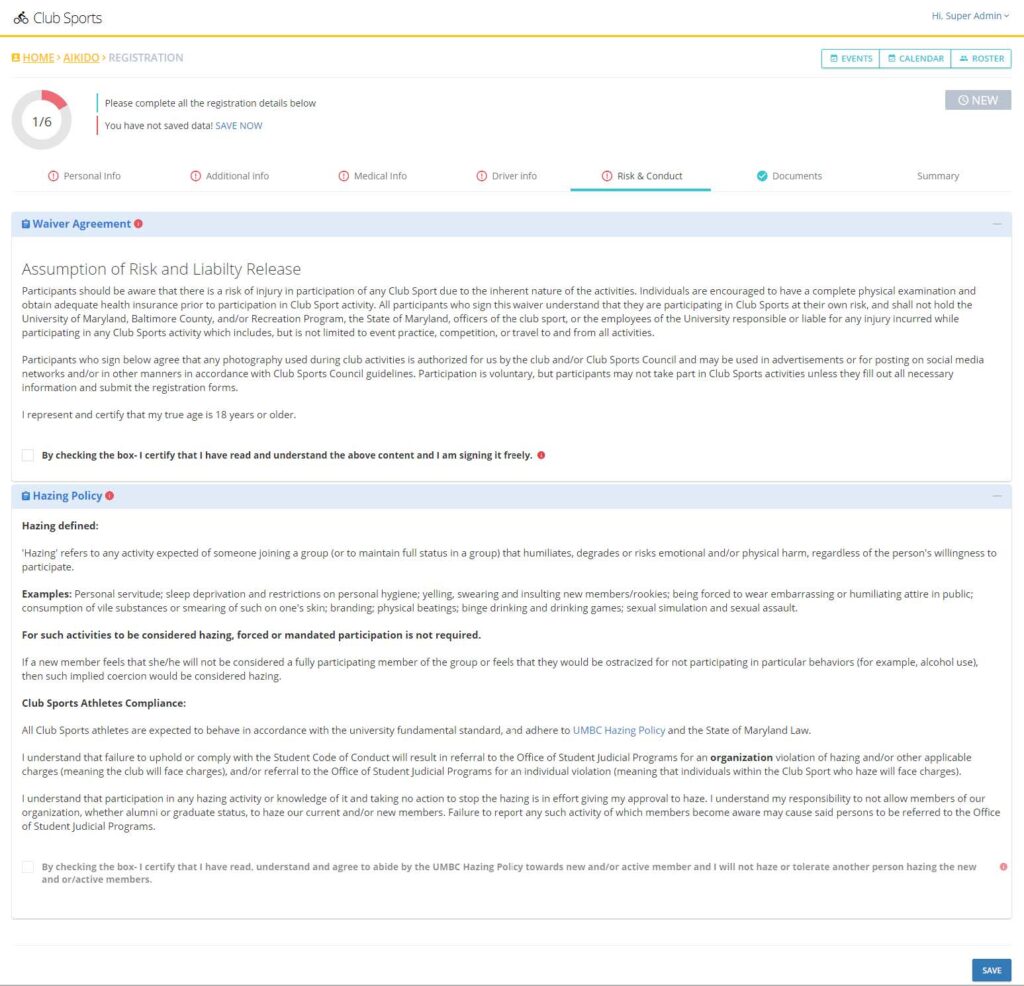
Carefully read and accept each of the accordion-style sections. Typical section heading include waivers, hazing, code of conduct, etc. Some schools require the opening of a linked document in a section before the checkbox can be selected.
Documents
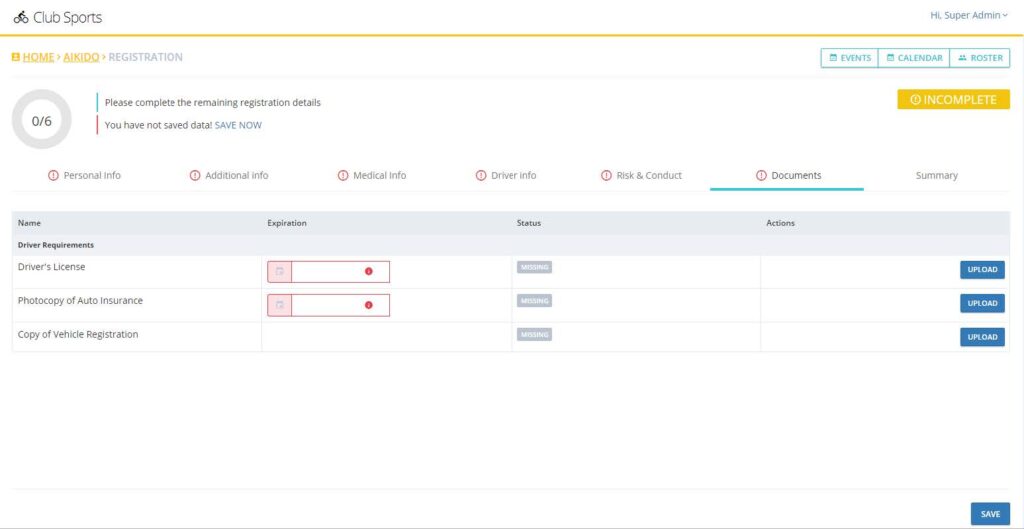
Required documents are listed here, along with the instructions on how that must be handled. Some documents will be uploaded, and some will indicate that they must be physically turned into the club sports office (not shown). For uploaded documents, an expiration date may be required. Acceptable file formats for upload are PDF, PNG, JPG among others. Word documents are not accepted.
Summary
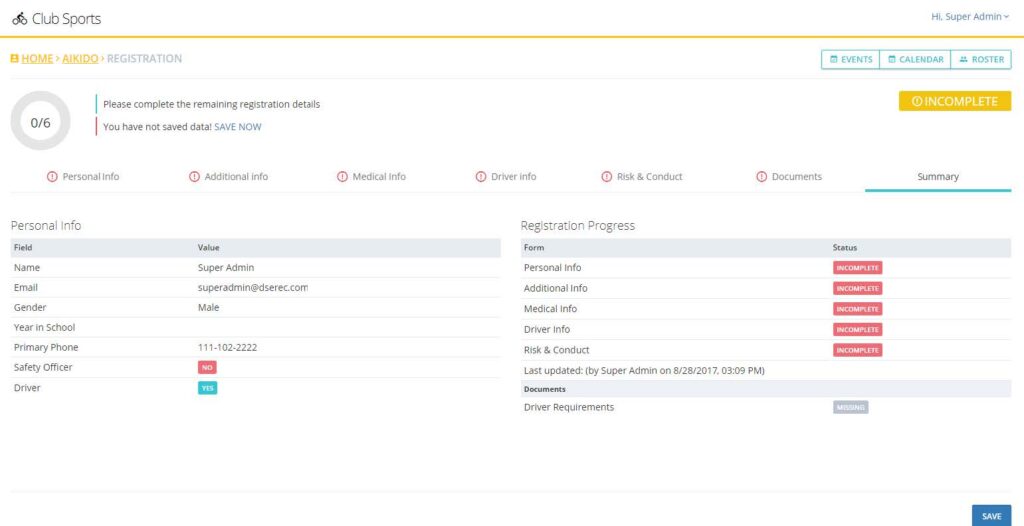
This page provides an overview of all information submitted. Each page, and document section are listed under the ‘Registration Progress’ header. Registration is only complete when the status indicator (shown as ‘incomplete’ above) says ‘Pending’. (In rare cases some schools may show ‘Missing Requirements’. This is only the case when an admin or athletic trainer must provide some acknowledgement.)
Club Officers
Club officers have two additional authorities within the software; Active/Inactive status and the Event Calendar. In some cases, club offices may also be granting member approval
Active/Inactive Status
When a member is approved, they automatically become active. Club officer have the ability to make an active member ‘inactive’ (and vice versa). Inactive members are eligible to be selected on the event form.
From the roster page, click on the ‘View’ button for a member; the Summary page will be visible and officers can review the status of each page and document requirement. Radio buttons for ‘Active’ and ‘Inactive’ are present, and once selected, clicking ‘Save’ will update to the appropriate status; ‘Approved-Active’ or ‘Approved-Inactive’.
For programs that allow club officers to approve members, further radio buttons for ‘Approved’, ‘Disapproved’, ‘Incomplete/Pending’, and ‘Archived’ will be present.
Event Calendar
Creating an Event
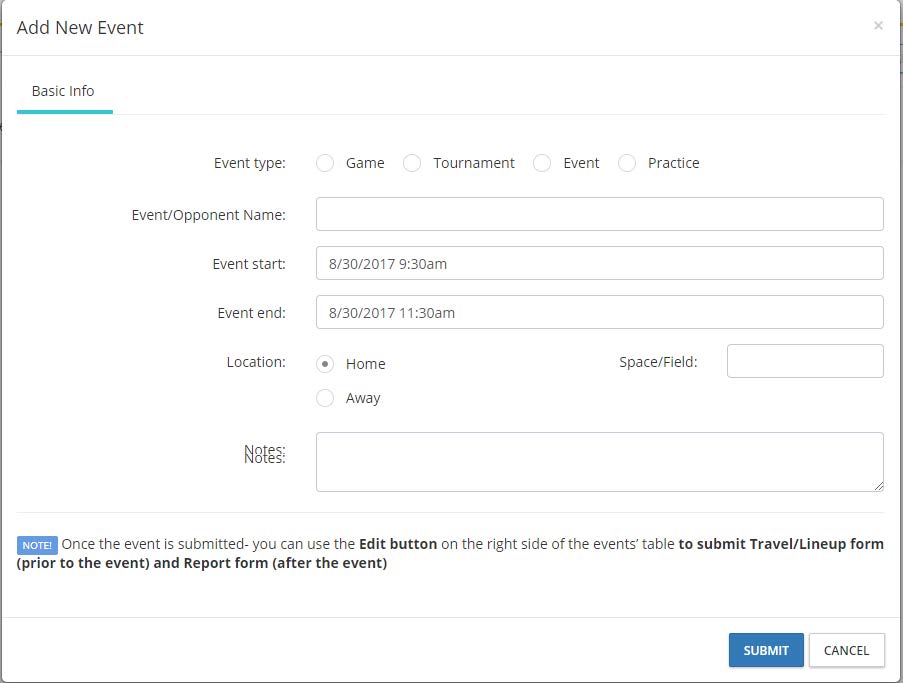
It is the responsibility of club officers to submit all home and away contest into the Event Center. From the club roster page, click on the ‘Event Center’ link, and then ‘Add New Event’. Provide the details of your event and click ‘Submit’. An email will be sent to a club administrator, who will approve the event.
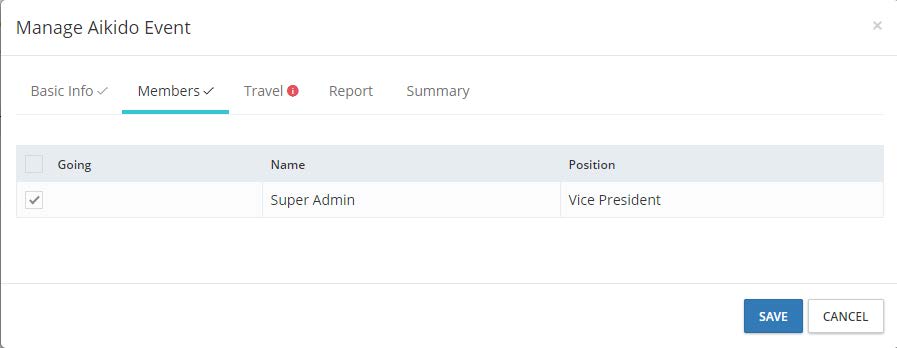
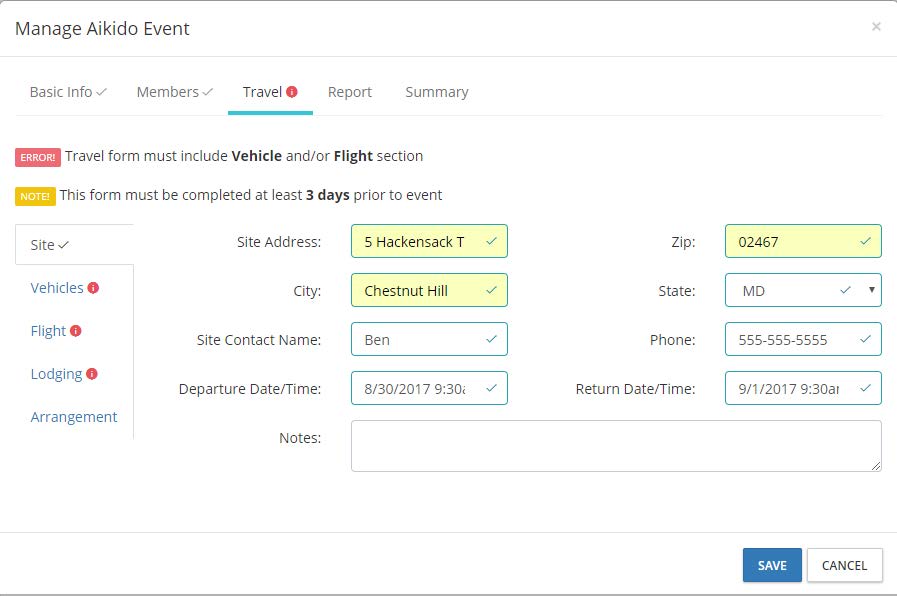
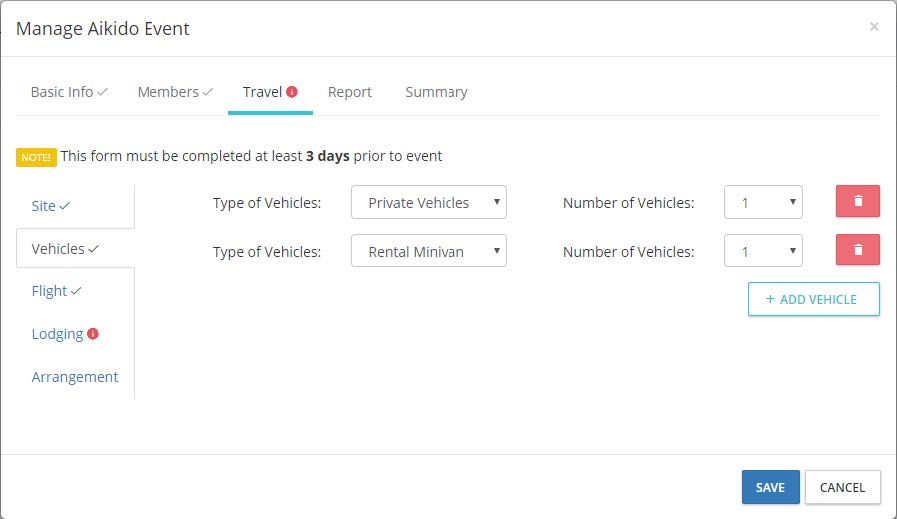
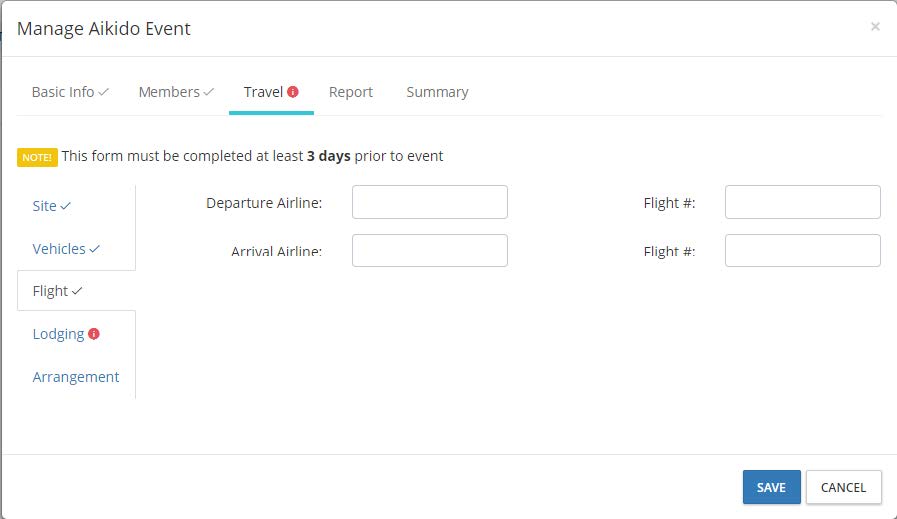
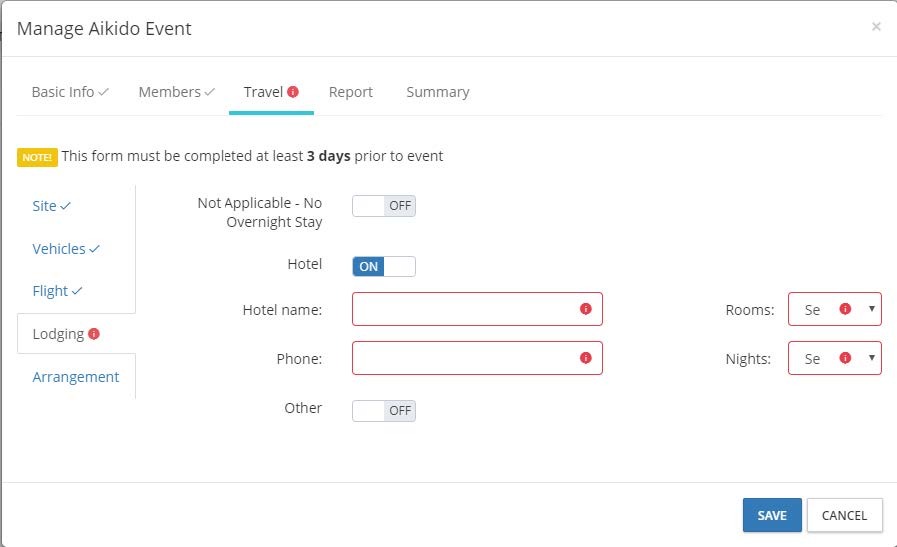
Five days prior to an event, a travel form is required. Click on the ‘Submit’ link in the Lineup/Travel column for the event. Provide the event details, the travel roster (only approved, activated players will appear), method of travel, lodging arrangements if applicable, and click ‘Submit’.
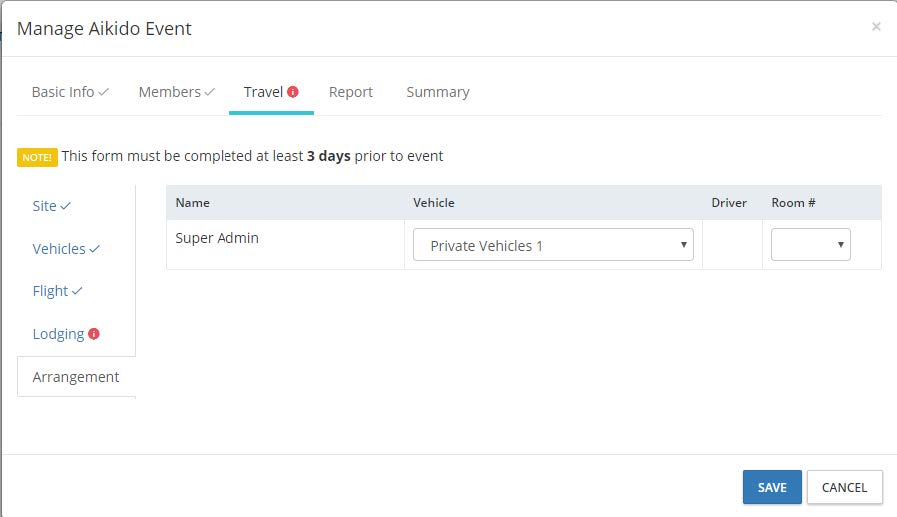
The next page will require that all members be assigned to a vehicle and room number, if applicable.
Upon the completion of an event, a report is required to be submitted. Click ‘Submit’ under the Report column, and provide the details of the event, including an optional event summary.