About Amano ONE
Amano ONE is UWM’s cloud software system for creating parking passes for the following garages:
- Lubar
- NWQ
- Pavilion
- Union
Transportation Services strongly recommend that you contact us to assist in the planning of large scale events. We can direct you to the correct parking pass and also help ensure that there is enough parking for your event.
Please our departmental validations guide for information about validating parking at other locations.
Types of Passes in Amano ONE
UWM offers two different types of passes at Lubar, NWQ, Pavilion, and Union garages.
- Also known as an eFlexPrint pass.
- Pay by the hour based on the garage fee schedule.
- Billed only if used.
- Parking on a first-come, first serve basis.
- Also known as FlexPass or MyTicket Pass.
- Flat $12 fee.
- Billed based on the number of passes reserved.
- Guarantees parking.
UWM employees must have an account created for them to access Amano ONE. This can be done in one of two ways:
- You can be added by the administrator for your department’s account. This is valid for validating parking related to one department or funding string.
- You can submit the Department Validations Access Request form. If you need access to multiple departments or funding strings, please submit this.
Using Amano ONE
You can validate parking for guests who pull a ticket. There are two methods of validating tickets in Amano ONE:
- The first method is to add the validation to the ticket via the validation portal. This is often called an online validation.
- The second method is to give the patron a printed QR code validation in advance.
Online Validation: Validate Ticket on the Same Day
If you have a guest whose parking needs to be validated right now, please follow one of the two steps to do so:
- Log into Amano ONE.
- Navigate to the Validate tab.
- Enable desktop camera if preferred: If your desktop is equipped with a video device, you can click on SCAN FOR CODE to enable the camera. You will be prompted to Allow the camera to be used on the browser.
- Scan the garage ticket if desktop camera is enabled: Once enabled, you will now be able to scan the QR coded tickets using the desktop camera.
- Apply a validation to the ticket: Once the ticket is found, you will be able to click the dropdown menu to APPLY a validation. You also have the ability to remove the validation on a ticket if necessary.
- Confirm guest departure: Once the validation is applied, you can instruct the parker to exit with the validated ticket.
- Log into Amano ONE.
- Navigate to the Validate tab.
- Find the ticket if desktop camera is not enabled: If no camera is available, simply type in the ticket number (GUID) in the search bar to find the ticket.
- Apply a validation to the ticket: Once the ticket is found, you will be able to click the dropdown menu to APPLY a validation. You also have the ability to remove the validation on a ticket if necessary.
- Confirm guest departure: Once the validation is applied, you can instruct the parker to exit with the validated ticket.
QR Code Validation: Create Validations in Advance
If you have an event or visit upcoming, you can create and disseminate validations in advance using these steps:
QR codes are saved to a single PDF document. They cannot currently be emailed directly from Amano ONE. If you want to email the passes, you would have to do so separately. If you are emailing the passes to different stakeholders, you should create them with a quantity of 1.
- Log into Amano ONE.
- Navigate to the Validate tab.
- Enter your funding string in the Search box.
- You configure the following settings:
- Quantity: The number of QR codes to create.
- Max Uses: The number of times each QR code can be used.
- Uses Per Transaction: This isn’t used but you can set it to Max Uses.
- Valid From: The earliest date a QR code can be used.
- Valid Until: The latest date a QR code can be used.
- Click Download
Your passes are good to be used!
- The guest will pull an entry ticket at the entrance of the garage to lift the gate (A). Do not lose this entry ticket. You will need it to exit.
- At the event, the guest will receive a validation QR code from the event coordinator. These may come in a sticker format and can be placed on the back of your entry ticket.
- At the garage exit, the guest will scan the front of their pulled entry ticket on the reader (B) for fee calculation and then the guest will scan their validation QR code on the reader (B) again to pay for the parking.
- QR code validations can be printed on a sticker and attached to the back of the ticket for the convenience of the customer. Otherwise, it can be printed separately and handed to customers.
- The gate should open to allow the customer to leave.
- For any assistance, the guest should press the help button (C).

Request a Reservation
Parking reservations (formerly known as FlexPasses) are in the works. Please fill out the Department Purchase Request; instructions are listed on the form. You should have a request type of FlexPass, then fill out the information related to the event.
Using a Reservation QR Code
Arriving in the Garage
On arriving in the garage, repeat these steps. Do not pull a ticket on entering as that will interfere with the QR code.
- Turn Phone up to max brightness for best results.
- Scan the QR code (labeled as B in the image below)- look for an orange dot and move phone or print out to read QR scan.
- The gate will open and allow you to enter.
- If the gate does not open, please press the help button (labeled as C in the image below) to get assistance.
On Leaving
- Scan the QR code (labeled as B in the image above) – look for an orange dot and move phone or print out to read QR scan.
- The gate will open and allow you to leave.
- If the gate does not open, please press the help button (labeled as C in the image) to get assistance.
ONE Pass allows you to create and distribute passes to users based off email and phone number. An advantage to this is that you can enter in a license plate, so it should open the gate on entry and exit for the guest.
Please note the ONE pass is NOT a reservation. It functions the same as ticket validation, only streamlining the process for your guest. ONE passes only allow access if there is room in a garage. You should see the Parking Reservations tab for how to guarantee parking for your guest.
They can be used in of two ways:
- Create and send out passes for a single person. This is especially helpful if you want to have license plate recognized for the person on entry and exit.
- Create passes for multiple people.
To create a ONE Pass:
- Log into Amano ONE.
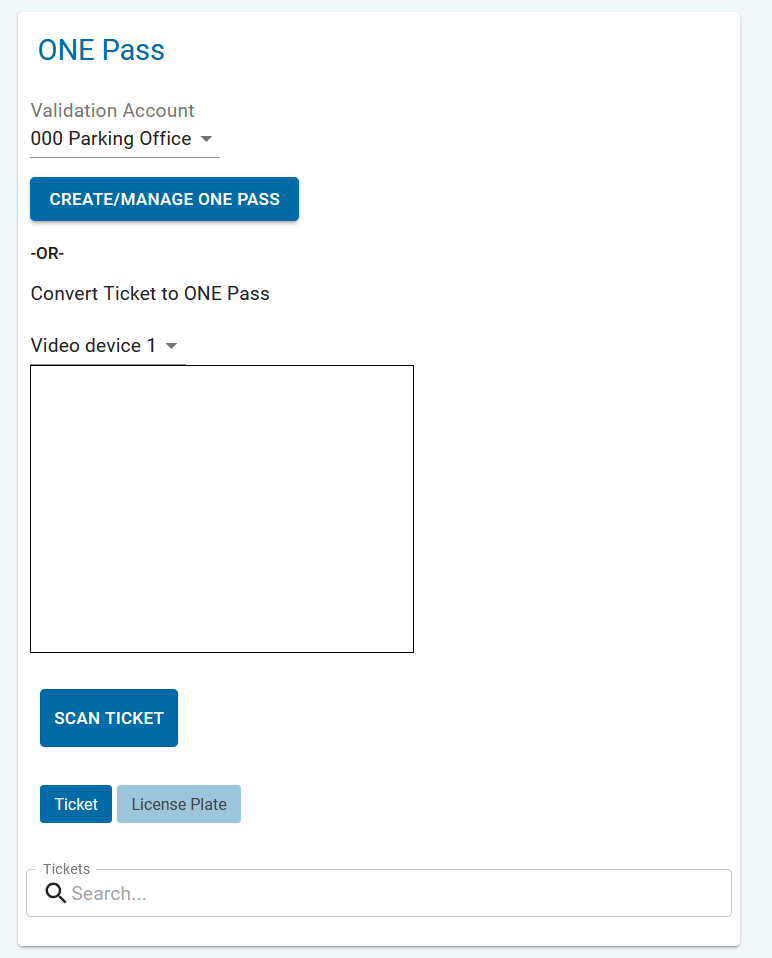
- Navigate to the ONE PASS.
- Select your Validation Account and click Create/Manage ONE Pass.
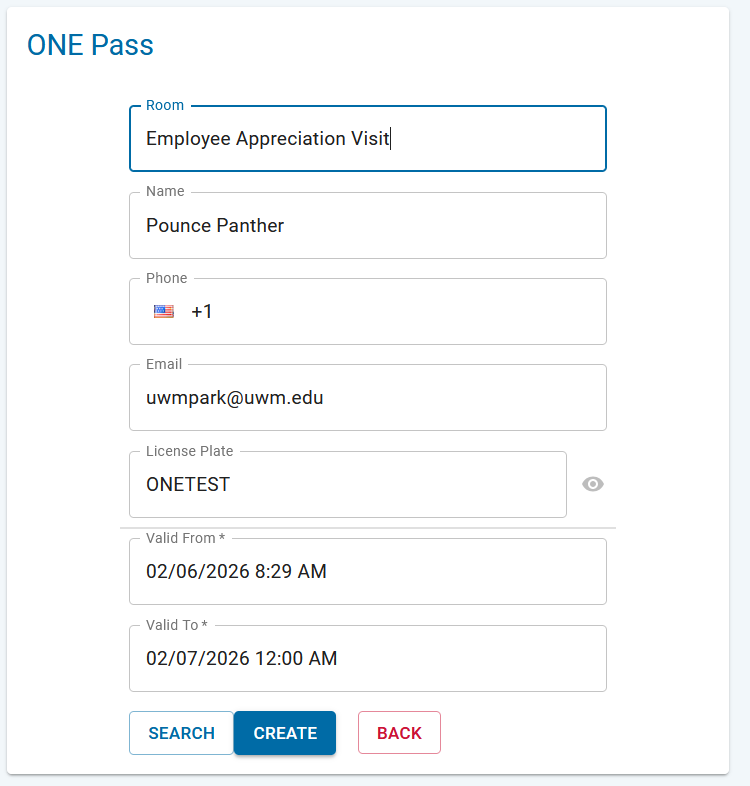
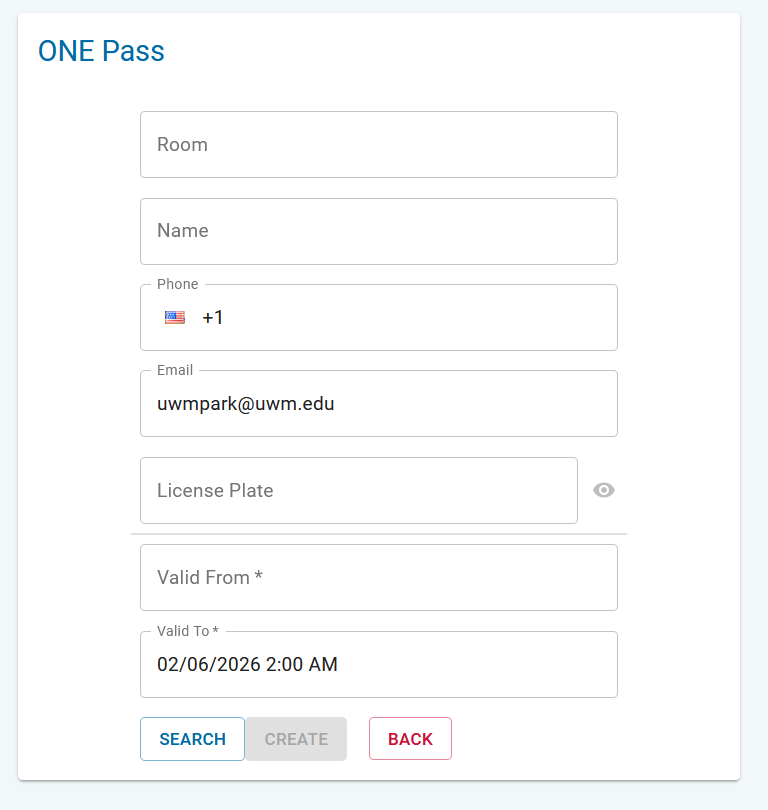
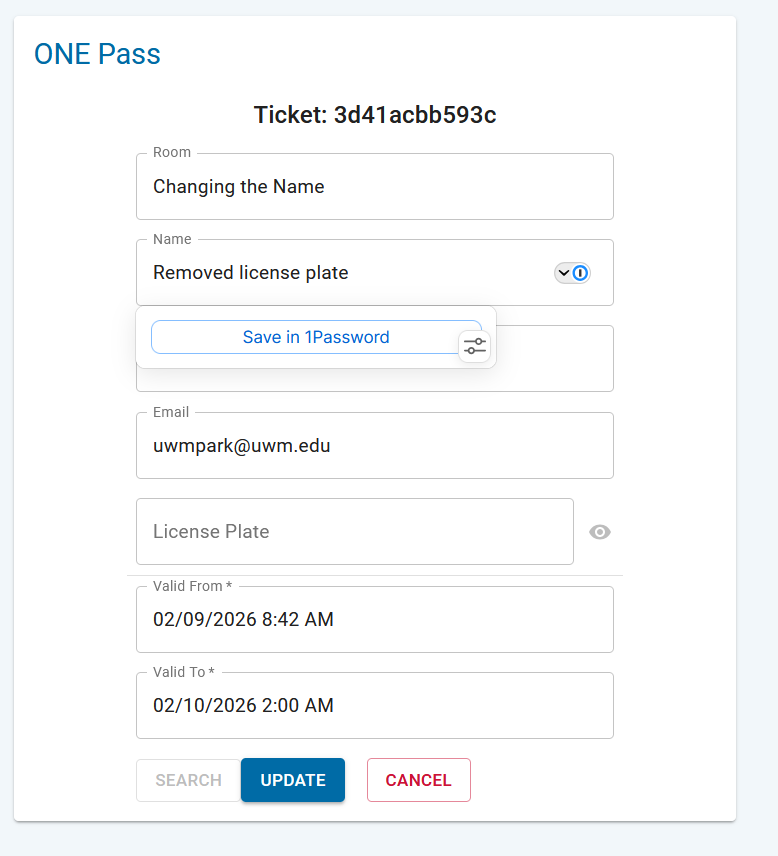
- Enter the following fields to create your ONE pass:
- Room and Name are optional fields that you can use to store contextual information about the reason the pass was created (such as the name of the guest or event).
- You must enter either Phone or Email. The pass is emailed or a link is texted to the customer. You can also enter both, and it will both be emailed and texted. If you are creating a ONE pass for a group, then it is recommended to use yourself or an event coordinator as the recipient.
- License plate is optional. If you enter a license plate, the cameras should read the plate (depending on the condition of the plate, etc.). If you intend to have this pass used by more than one person, then you must leave this field blank.
- Valid From and Valid To allow you choose how long the passes are valid for. You can have it valid for as long as you want. You can always adjust passes after the fact to extend them.
- Click the Create button, which will send out the passes via email and/or text.
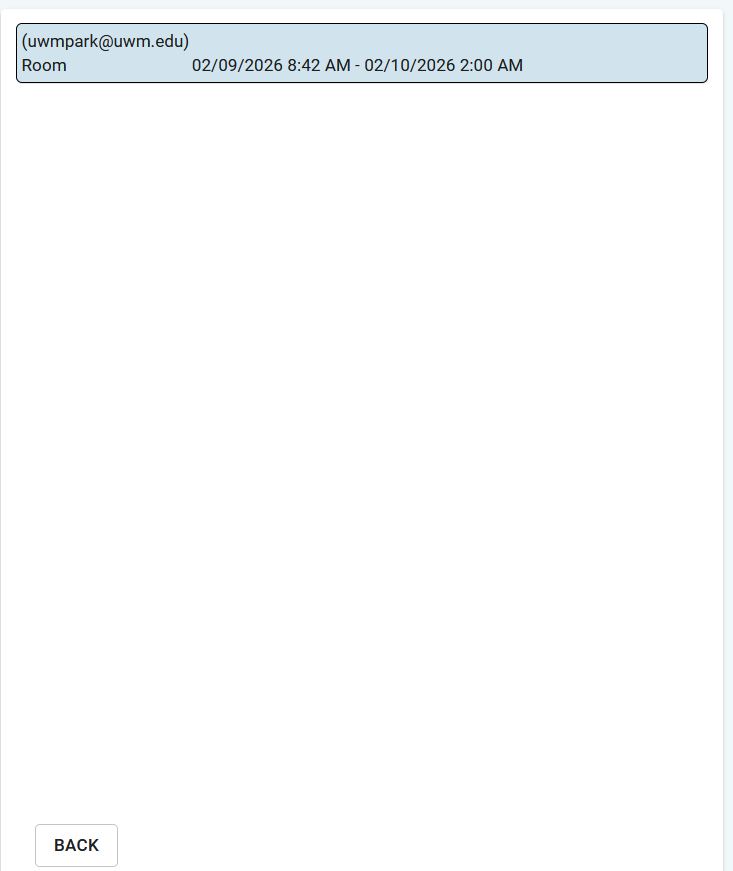
- If you wish to find a pass you previously created, then enter in an Email or Phone Number and adjust the date range to include how long it is valid for, then click Search.
- In the list that appears, select the pass you want to review or modify.
- Modify the ONE pass details as needed, then click Update, which will email/text out updated pass details. The old QR code should still be valid.
Training for Amano ONE
We can provide support as needed. Please contact one of the following individuals to arrange that.
- rueding4@uwm.edu
- 414-251-8038
- Student Union WG 25
Primary Contact: Validations and Transportation Services systems
Secondary Contact: Department Billing
- gsowor@uwm.edu
- 414-229-4000
- Student Union WG 25
Primary Contact: Department Billing
- ahinchey@uwm.edu
- 414-251-5196
- Transportation Services, Student Union WG 25
Primary Contact: Permit purchases, parking events and validations
Secondary Contact: UWM Fleet Vehicles
You can view a training session about Amano ONE at this link or by the embedded video below.