Need assistance accessing an online Supplemental Instruction Session? Struggling to find an exam review recording for your Supplemental Instruction course? Inquiring about NetTutor services? Please refer to the details below.
Accessing Online Tutoring/Supplemental Instruction Sessions
Tutoring and Supplemental Instruction will take place in-person and online for the Fall 2025 semester. The online sessions will take place via Zoom. To join online tutoring or Supplemental Instruction sessions, please see our SSC Tutoring & SI Canvas page. For more detailed, step-by-step instructions on how to use Zoom for attending online tutoring and Supplemental Instruction, please consult the instructions below.
Accessing Zoom Live Sessions (Student Edition)
IMPORTANT: Make sure to self-enroll to SSC Tutoring and SI Canvas page to access online tutoring, Supplemental Instruction sessions, and to view recorded exam reviews:
1. Log in to Canvas and click on the ‘Courses’ tab on the left side of the page. You can also access it through the ‘Dashboard’ if you have previously added.
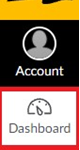

2. Select the site SSC Tutoring & SI

3. Once you are at the SSC Tutoring & Supplemental Instruction course home, look towards the bottom of the left-side menu and select ‘Zoom.’
4. There is a session for each course and tutor or Supplemental Instruction Leader (unless the tutor/Supplemental Instruction leader is the same, then there will only be one room to use for both). They will be organized in the following format: (subject) (course number) – (name of tutor/SI leader). Find the session for your course and/or SI Leader and click on it (Ex: Sociology 101- Caroline). Next search for your course and name in the list of Zoom meetings.
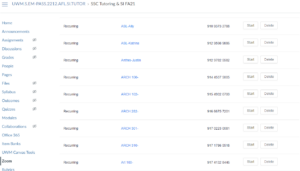
5. Then hit start to join your meeting and you will be taken to this screen.
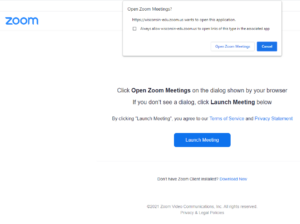
6. Select “Open Zoom Meeting” Once in your Zoom room, make sure you select “Join with Computer Audio”
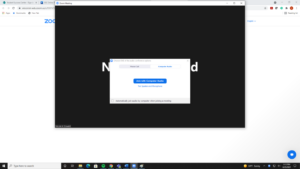
Ensure your computer or phone browser settings allow Zoom to access your microphone: Adjusting Audio and Video in Zoom
Accessing Exam Review Recordings
Struggling to gain access to an exam review recording? For more detailed, step-by-step instructions on how to access exam review recordings, please consult the instructions below.
How To Access Exam Reviews on the SSC Tutoring and Supplemental Instruction Canvas Page:
IMPORTANT: Make sure to self-enroll to SSC Tutoring and SI Canvas page to access online tutoring, Supplemental Instruction sessions, and to view recorded exam reviews:
Now, here are the basics of accessing your course’s exam review:
1. Log in to Canvas and click on the ‘Courses’ tab on the left side of the page, or access your courses through the ‘Dashboard’ if you have previously added them.
2. Select the site SSC Tutoring & Supplemental Instruction
3. Once you are at the SSC Tutoring & SI course home, look for your course name and number (you may have to scroll for a while because there are a lot of courses!) For this example, Math 98/108 is the course we are looking for:

4. After you find your course, click on the drop-down arrow to see all of the published exam reviews.
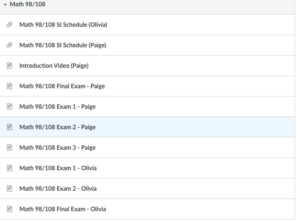
5. Next, look for the exam review you need and the name of your Supplemental Instruction leader/Tutor (EX: Exam Review I (Name of Supplemental Instruction Leader/Tutor) – FA25). All of this information can be found within the email sent to you from the SSC about the exam review recording. For this example, Paige is our Supplemental Instruction Leader.

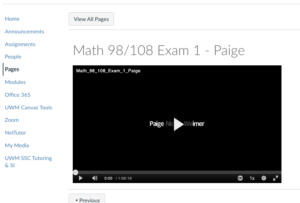
6. You will have will have access to the recording once you click on the exam review recording (EX: Exam Review I – Paige ).
NetTutor
Stuck on a problem late at night? SSC offers free tutoring to UWM undergraduate students through NetTutor. Each UWM student may use NetTutor for any course every semester. Find the information on how to use NetTutor linked below.

The NetTutor tutoring team consist of teachers and tutors who have a demonstrated interest in helping students succeed. All tutors have taken a rigorous subject-area exam to show that they are qualified for a tutoring position. Each tutor shares their strengths with the tutoring team, fostering a collaborative, academic, and professional atmosphere. Tutors are trained in best practices, learning theory, and supporting adult learners.
NetTutor offers a personalized tutoring experience, avoiding a ‘one-size-fits-all’ approach. With a comprehensive library of textbooks and educational materials, they tailor their assistance to each student’s needs. Utilizing the Socratic Method, tutors guide students through problems and concepts without providing direct answers. This method enhances critical thinking skills and fosters perseverance!
| Accounting | Biology and Life Sciences | Chemistry | French | Math (Calculus and Above) | Nursing | Psychology |
| Anatomy and Physiology | Biomechanics | Computer Science and Information Science | FYE and College Success | Math (in Spanish) | Physics | Spanish |
| Art | Business | Finance | Humanities and Social Sciences | Math (Through Pre-Calculus) | Political Science | Statistics |
How to Access NetTutor
1. If not already enrolled in the SSC Tutoring and SI Canvas, please use this link to enroll: Self-enroll to our SSC Tutoring & SI Canvas page.
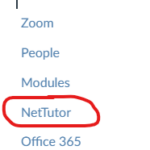
2. Click on our “SSC Tutoring & SI” Canvas course
2. Find the “NetTutor” listed in the left-hand column and click on it
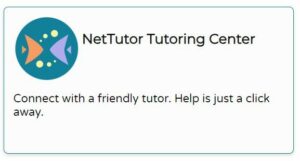
3. Click on the NetTutor Tutoring Center to connect with a tutor.
3. Scroll to find the subject in which you want to receive assistance in.
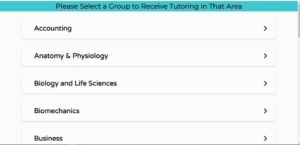
NetTutor Demonstration
Utilizing Whiteboard on NetTutor
If you encounter issues with NetTutor during non-business hours, you can contact them for help at 813-674-0660, ext. 204.