Logging Into The App
If you are faculty, a staff member, or a student with a profile on a site maintained by the College of Letters & Science (L&S), you can manage your own profile. Instructions for how to manage your website are shown below, and you may also watch the tutorial video.
- Go to L&S Sites and People Application, and log into the application by clicking on the yellow Login button. Use your UWM credentials to login if needed.

- Once logged in, you will see the dashboard. If you have a profile in the system, you’ll see a box titled “Your Profile” with buttons for “View” and “Edit.” Click Edit to update your profile.

- At any point while you are editing you click “save,” then at the top of the profile, you will see a blue box that displays a caching process for a few seconds. Do not navigate away from the page until that process is complete.
- When you return to your profile page on the department’s website, you may notice that changes you made have not yet updated. If that is the case, open your full profile page (not just the thumbnail view), refresh the browser window once or twice to force the changes. Alternatively, you can leave you profile alone, and it will update automatically within four hours.
Directory Information
Most of the information in your profile is editable; however your email, phone number, and office number are pulled from the UWM Directory managed by Human Resources.
If your name, email, building, room number, (highlighted in red in the screenshot below) have changed, please use the following links to request those changes to the directory:
- Phone Number
- Name Change
- Office Location (email)

Body Content
Photo
You may upload your a photo to your profile. It will be automatically resized to the standard dimensions of 300 x 350px. Please do not try to upload a photo whose file size is larger than 1MB. Professional-type photos that clearly show your face are encouraged.
When you select a new photo for your profile, it will not show as replaced immediately. It is only after you save your profile and are in view mode that you will see the change.
Personal Website
In the sidebar under your photo, you may enter a personal website that you want associated with your work.
Curriculum Vitae
In the sidebar under your photo, you may add a CV to your profile by choosing a file and then click save. When it is time to update your CV, use the trashcan icon to delete the old one and then use Choose File to select the new one.
All CV file names are automatically converted to your epantherID plus the file type when uploaded. For example, if John Doe with an epanther of jdoe uploads “My-amazing-CV-2026.pdf.” It will be converted to “jdoe.pdf” in your profile.
Preferred Pronouns
In the sidebar under your photo, you may enter your preferred pronouns.
Main Content
The previous content of your profile page should have been pulled in by the application, and it will have tried to parse the page into the sections. However, if there is any content it didn’t parse perfectly, it will have dropped the content into the Biographical Sketch field at the bottom the form.
All running text should be written in third person using she, he, they or other appropriate third-person pronouns instead of first-person pronouns like I, me, and my.
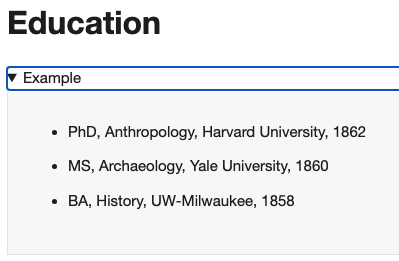
Examples of how to format best-practice content are included under the headings of every field. (Screenshot below)
If you have any links, make the linked text describe the content behind the link. Don’t use “click here” or the like as the link text. Smashing magazine has a good article about the issue, “Links Should Never Say Click Here” .
You do not have to fill out every field, and any field left completely blank will not render headings or content to your profile. The following long form fields are available for your use.
Education
A list of your relevant degrees. Using bulleted list is preferred for this field.
Office Hours
A list of your office hours, so that your students know when and how to contact you for assistance
Teaching Schedule
This is an automatically generated/updated table of the courses you listed in the catalog as teaching during the current semester. If you have uploaded a syllabus for the course to the College’s Syllabi Repository a link to the document will be generated in the table. If the table is incorrect, please contact ls-web@uwm.edu for support.
Courses Taught
A list of the courses you have taught or teach on a regular basis. Using a bulleted list is preferred for this field.
Teaching Interests
A list or narrative of the subjects or topics about which you prefer to teach.
Research Interests
A list or narrative text describing your current research interests.
Related Activities
Sometimes, the other fields don’t cover everything you feel needs to be listed on the profile site, so a list of related activities is sometimes a good option to include items that don’t fit the other fields.
Custom Section
If the existing headings do not accurately represent any additional content you want on your profile, this section allows you to add a custom title and content you may wish to include on your profile site.
Biographical Sketch
This is for the narrative text that describes a person generally.
Managing Publications
To add publications:
- If you are in the app dashboard, click the view button.
- If you are editing your profile, save the changes to your profile. After the caching is complete (you’ll see caching happening in a blue box at the top of the profile), your profile will return to view mode.
- If you are already in view mode, scroll to the bottom of your profile.
At the bottom of the view page you’ll see an Add Publication button, pressing it will take to a form to add a publication. (Screenshot below)
From this area, you may also edit, hide, or delete existing publications.

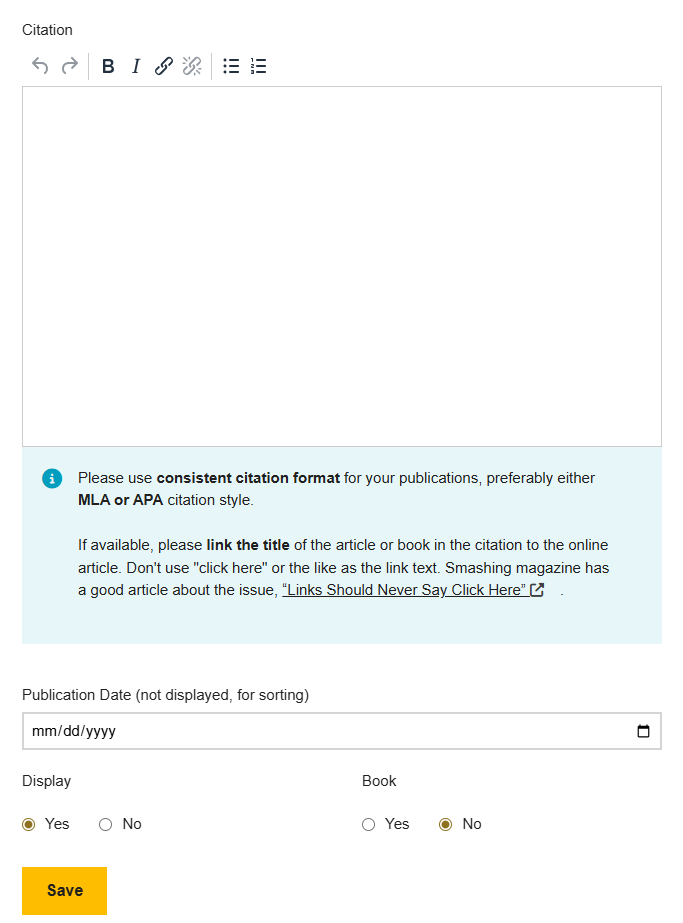
Publication Date
This is used for sorting the publications, so if you don’t have an exact date because the journal uses “quarter I” instead of a date, use an approximate date to place it in the right place in the publication list. This date is not displayed; it is used only for ordering the list.
Display
Whether to display this publication on the selected publication list. This is useful for pre-entering publication before they are published, or for removing a publication from your selected publication list.
Citation
The citation as you would like it displayed on your selected publication list. Please use a consistent citation format, preferably the MLA or APA citation standard.