
The Lubar College of Business Mentorship Program (LCBMP) is hosted on Panthers Connect, UWM’s student and alumni mentoring, networking, and engagement platform. To apply as a mentee or mentor, use the instructions below based on whether you already have a Panthers Connect account.
Instructions If You Do Not Have a Panthers Connect Account
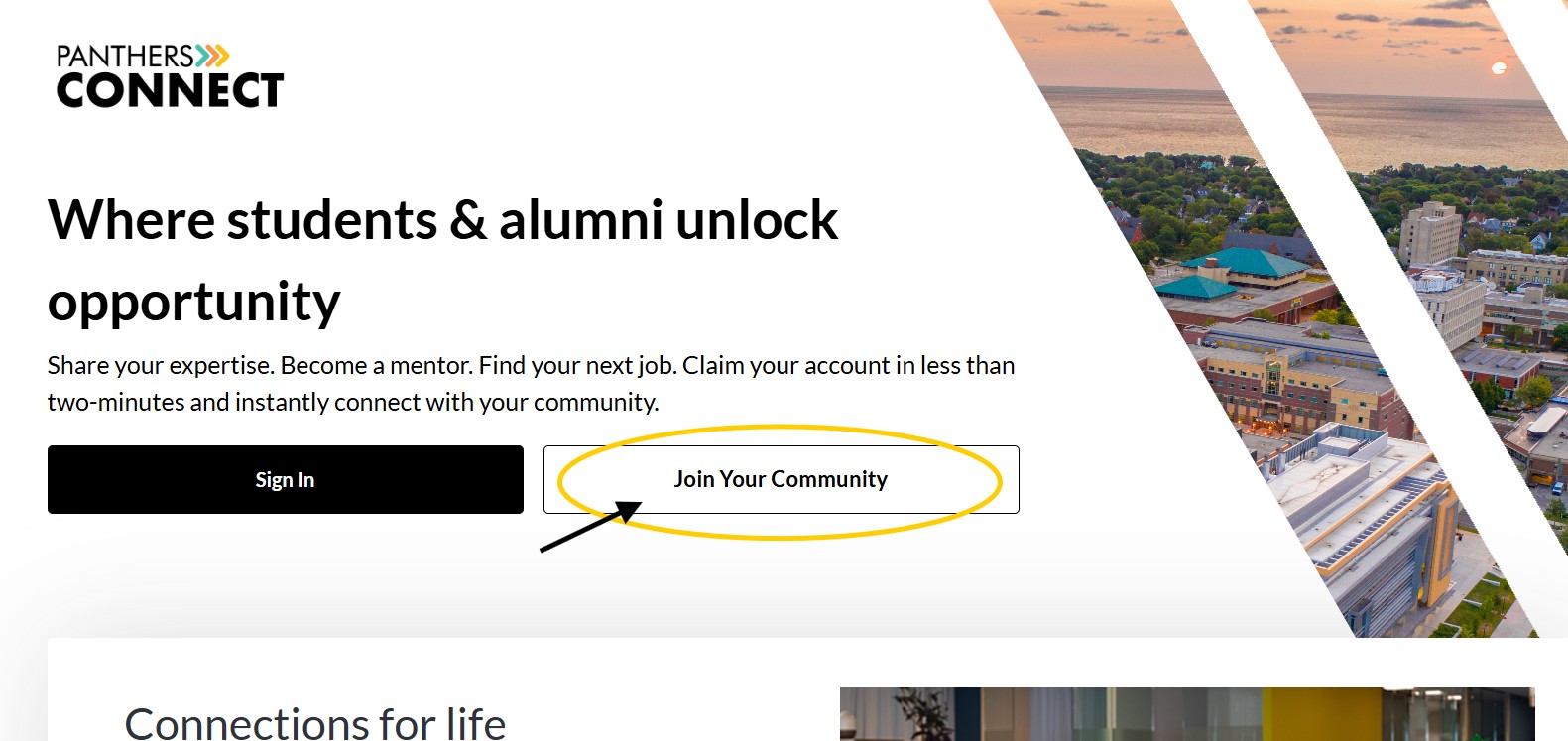
Step 1: Access the program through this link
Step 2: Create a Panthers Connect account
When prompted, select “Join Your Community”
Step 3: Choose a sign-in method
Select the sign-up option that best applies to you
- Students: Sign in using your Student ID/Single Sign-On (SSO) credentials.
- Mentors: Sign in using either LinkedIn or Email
Step 4: Complete your account profile
Follow the prompts to create your account and answer all the profile questions. It is important to provide complete and accurate information since your responses will be used during the mentor and mentee matching process.
Step 5: Complete the LCBMP application
After creating your account and signing in, you will be directed to the LCBMP application. Complete all required application questions before submitting your application. Your responses help determine mentoring matches.
Instructions If You Have a Panthers Connect Account
Step 1: Sign In to Panthers Connect using your existing credentials
Step 2: From the dropdown menu under the Connect tab at the top of the screen, select Programs to find and select the LCBMP page
Step 3: Select the Join button in the upper right corner
Step 4: Choose your role (mentor or mentee) and complete your application.
Please contact Liana Opitz (lmopitz@uwm.edu) with any questions, comments, or concerns!