Instructors and departments can contact the Center for Advancing Student Learning (CASL) to receive support on the following software tools Note that CASL Support is focused on supporting instructors support. Student support is carried out through the UWM Help Desk.
Canvas

Canvas is UWM’s campus-supported digital learning environment. Instructors can use Canvas to have students access readings, watch videos, take quizzes, submit assignments, participate in online discussions, and more. With its extensive range of features and tools, Canvas fosters effective communication, collaboration, and organization within classes.
CASL partners with UWM school and college support offices to assist instructors with course redesign, learning technology integrations, and other needs related to Canvas.
H5P

What is H5P?
H5P is a web-based authoring tool that helps instructors build interactive course content. A wide variety of activities can be created; including flashcards, matching games, interactive images, drag-and-drop text, speak the answer, interactive videos, timelines, and branching scenario/case-studies. Examples of interactive content types can be explored on the H5P website.
How can H5P be used in courses?
Interactive content can be used to increase students’ engagement with the course material or used to assess students’ comprehension. Because H5P is integrated with Canvas, it provides automatic grading and score pass-through to the Canvas grade book. While H5P activities can be graded assignments, they should not be used as the primary means to assess student learning. Instead, H5P activities can be used to promote curiosity and to strengthen a sense of connectedness to course concepts. H5P activities provide instant feedback to students, allowing them to self-assess their understanding of the course material. This gives students control over their learning processes and helps them feel competent to achieve their own learning goals.
How can I use H5P?
If you are interested in using H5P, you are welcome to use H5P.org. This free tool offers the same authoring functionality, but the tool is not directly integrated with Canvas. You can create interactive content in H5P, and this content can be embedded into Canvas for student access. However, activities developed in H5P and embedded into Canvas will not transfer student scores to the Canvas Grades area.
Hypothesis
What is Hypothesis?
Hypothesis is a social annotation tool that is fully integrated with Canvas. Using Hypothesis, instructors can make PDFs and websites annotatable. Students can annotate course readings collaboratively, sharing comments and replying to peer’s comments. Instructors can also create annotation assignments. Through Hypothesis-enabled assignments, students submit their annotations for feedback and grading in Canvas. This short video demonstrates how to use Hypothesis in Canvas.
Successful strategies for using Hypothesis include:
- Having students ask each other questions, share ideas, and collaborate around their learning.
- Inviting students to annotate the syllabus.
- Making readings annotation-enabled to create an optional space for students to connect with each other.
- Guiding students through the reading with instructor annotations.
- Using Hypothesis for seminar-style discussion online.
- Recommending that students annotate the lecture notes.
The Hypothesis Pilot at UWM
During the Fall 2020 semester, Hypothesis was piloted at UWM. As a result of the positive feedback, Hypothesis has been purchased for use during the Spring 2021 semester through the Educational Technology Fund.
During the pilot, approximately 500 students in 30 courses used Hypothes.is for annotations, threaded messages, and page notes. Feedback from both students and instructors was overwhelmingly positive with 95% of student saying Hypothesis was useful and 75% saying they would be disappointed if they were unable to use Hypothesis in other courses. All pilot instructors found Hypothesis useful and would recommend Hypothesis to other teachers. This brief presentation that provides data and stories from UWM instructor and students.
Using Hypothesis in a Course
Hypothesis has been enabled for use in all UWM credit-bearing (SIS) courses. There are two ways to use Hypothesis, graded and ungraded. You can create a Hypothesis-enabled Assignment in Canvas. Instructors can evaluate and grade these Assignments using the SpeedGrader and student grades would automatically flow into the Canvas Gradebook.
Receiving training to use Hypothesis
Instructors can register for Hypothesis workshops through the CASL Events Calendar.
Topics addressed in these workshops include:
- Exploring successful strategies for using Hypothesis as a social annotation tool
- Creating a Hypothesis-enabled assignment
- Ensuring PDF materials contain digital text (optical character recognized)
- Orienting my students to Hypothesis
- Using groups with Hypothesis
- Connecting a rubric to a Hypothesis-enabled assignment
- Grading student annotations
- Getting help with Hypothesis for me and my students
In addition, you are welcome to contact CASL for support setting up and using Hypothesis in your course.
More information on Hypothesis
Answers to frequently asked questions (FAQ) about the Hypothesis Social Annotation Tool can be found in this article.
Kaltura’s My Media
What Is My Media?
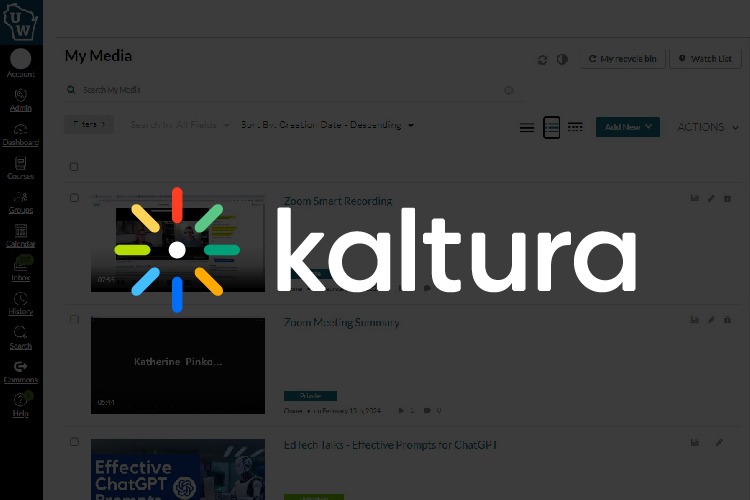
My Media is a streaming video platform that is integrated with Canvas. Instructors can upload their audio and video files to My Media and can then embed those videos in their Canvas classes for students to view. My Media automatically generates captions for uploaded videos. Note that you can edit your video captions in My Media. Note that Kaltura is the company that owns the tool My Media.
Technical Knowledgebase Articles:
- How Do I Upload a Video through My Media to a Canvas Page?
- How Do I Embed My Media Videos into my Canvas Course Site?
- Troubleshooting issues with viewing My Media videos or video quizzes
- How do I edit a video that has been uploaded to My Media?
- How do I share a video uploaded to My Media with viewers outside Canvas?
- How to download a video from My Media?
- How do I give Co-Editor, Co-Publisher, or Co-Viewer access to a My Media video?
- How Do I Change Ownership of a My Media Video?
UWM provides instructors with access to online proctoring tools.
Respondus LockDown Browser (LDB)
Respondus LDB restricts students’ access to external resources during online assessments, ensuring a more controlled testing environment.
Student Response Systems and Polling
Student response systems, often referred to as polling tools or “clickers,” are technologies that allow instructors and facilitators to engage participants in real time. These systems enable users to pose questions, gather instant feedback, check knowledge, and encourage interaction in both large and small group settings. In higher education, polling promotes active learning, increases participation, and provides instructors with immediate insights into student understanding, allowing them to adjust instruction on the spot. Beyond the classroom, polling can also be used in meetings and events to foster collaboration and collect input from diverse audiences.
Vevox Polling
Vevox is a cloud-based student response and polling platform now available to the entire campus community. Integrated with presentation tools and the learning management system, Vevox supports real-time polls, quizzes, and anonymous Q&A that enhance student engagement and inclusivity. For instructors, Vevox provides an easy way to encourage participation, gauge comprehension, and gather feedback during face-to-face, hybrid, or online classes. Staff and administrators can also use Vevox for meetings, workshops, and events to drive interaction and decision-making. With its intuitive interface and flexible applications, Vevox empowers both instructors and staff to create more dynamic, responsive, and engaging learning and working environments.

UDOIT is designed to assist faculty with improving the accessibility of their Canvas courses. It scans Canvas courses, provides easy-to interpret suggestions to improve the accessibility of the course, and can automatically repair many common accessibility issues.
Video Captioning
Videos uploaded to My Media are automatically captioned, and the captions can be edited directly in My Media.
Automatic captioning is also available for Zoom cloud recordings.
Automatic Captioning & Editing Captions in My Media
My Media, an integrated streaming video platform within Canvas, offers instructors the ability to upload and share/embed videos with their Canvas classes.
Upon uploading a video to My Media, the system automatically generates captions for the content. While these machine-generated captions are generally of good quality, they may not meet the accuracy standards required for students relying on captions. Therefore, it is recommended that instructors review and edit the captions to correct any errors in spelling, punctuation, and other aspects. My Media provides a user-friendly caption editing tool specifically designed for this purpose, enabling instructors to enhance the accuracy of the captions in their uploaded videos.
Zoom

Zoom is a web conference service used for video, voice, virtual classrooms, online meetings, screen sharing, chat, and webinars.
Zoom is an online collaboration tool that provides virtual rooms where participants communicate and share information, typically within four primary use-case models — small group work, review sessions, interactive presentations, and virtual office hours. This service is also being used to hold fully virtual class meetings, and Hy-Flex classroom meetings, in which students are both present in a face-to-face classroom and virtually through this synchronous tool.
The Center for Advancing Student Learning (CASL) partners with UWM school and college support offices to assist instructors with course redesign, learning technology integrations, and other needs related to Zoom and other learning technologies.
Find Help for Resources Supported Outside of CASL
While CASL does not offer support on the following UWM software tools, you can click the links below to be directed to the department at UWM that provides support for the specific tool.
Record your lecture in the classroom with Lecture Capture. This recording can be scheduled or ad-hoc and allows for the recording of audio, video, and content.
Microsoft Teams is workspace for real-time collaboration, messaging, online meetings, file sharing, and more.
Revolution Lightboards
What is a Lightboard?
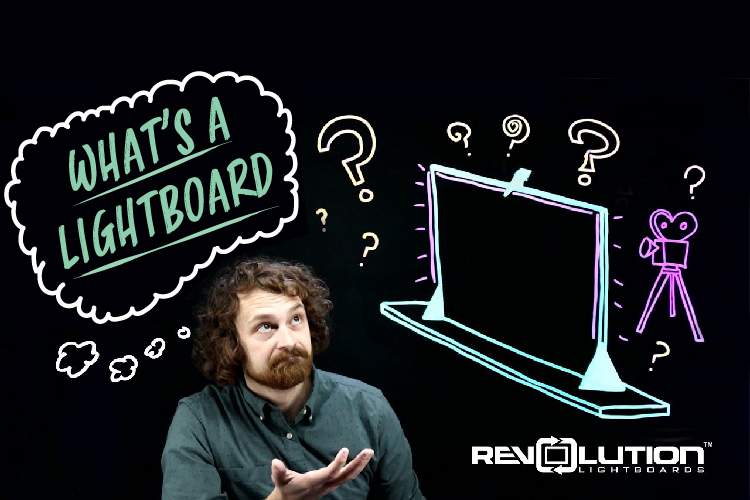
Lightboards are large backlit panes of glass on which instructors draw while speaking into a camera. They are similar to a traditional whiteboard, with the exception that instructors stand behind the glass to draw equations, write notes, and edit on-screen slides. All the while instructors are able to look directly at the camera where students would be in a face-to-face classroom (Click here for a short demo). Our lightboard setup is user friendly (requiring only two buttons to operate), and permits you to teach as though you were in a physical classroom. (Actual instructor-created examples here).
Combined with thoughtful pedagogy, we believe lightboards can boost instructor presence in the course, and help build a community of learning.
The Lightboards at UWM are now managed by Classroom Services.
Learn More about the Lightboard
Active Teaching Lab
On November 10, 2020, we provided a recorded introduction and walk-through of UW-Milwaukee’s lightboard. The session introduced the lightboard studio space, showed how to sign up and reserve use of the lightboard, and provided access to additional training material.
- Video recording of 10 November 2020 Active Teaching Lab
- Active Teaching Lab collaborative handout with additional information
Self-paced Lightboard Canvas Course
This Canvas course will provide an overview of lightboard technology, a calendar to help you plan your lightboard session, instructions to use the lightboard, and information on how to edit and publish your lightboard video.
- Click here to sign up for Lightboard Canvas course
- If you’ve already signed up for the course, click here to navigate to the course directly.
KnowledgeBase Documentation
Instructional resources available in the UWM KnowledgeBase. All content in the UWM KnowledgeBase regarding the Lightboard is identical to those found in the Canvas training course.
Lightboard Accessibility Considerations
- Be Prepared
- Make sure your PowerPoint/presentation is accessible
- Wear dark colors when your presentation has a dark background. Wear light colors when your presentation has a light background. This allows you to blend into the background while creating better contract between the text and the background.
- Audio
- Speak loudly and clearly (the microphone is at the top center of the frame)
- Caption your video prior to sharing. Upload to My Media to make use of the automated captioning tool.
- Visual
- Write on the board using large legible print
- Read text and describe images shown on screen
- Choose marker color carefully. Viewers with full or partial colorblindness may not be able to distinguish between colors.