Monitoring Foodborne Illness Investigation
The Student Health and Wellness Center, in coordination with county and state health departments, is tracking cases of cyclosporiasis, a gastrointestinal illness caused by the microscopic parasite Cyclospora cayetanensis. While Wisconsin is not currently experiencing a localized domestic outbreak, cases are rising regionally across the Midwest, and many state cases are linked to summer travel. Read more about campus monitoring, symptoms and what to do.

How Students Join a SHAW – Counseling Telehealth Session

Check-in Steps

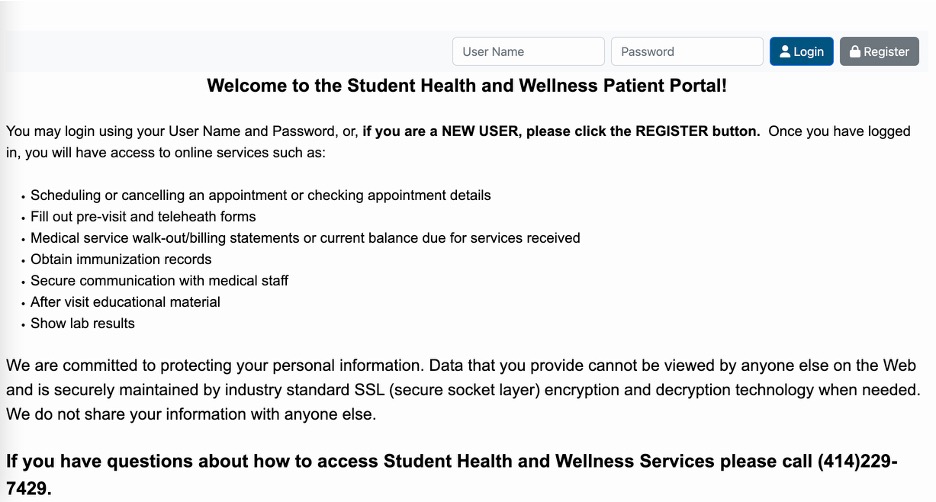
A screenshot of the login page of the SHAW Patient Portal, with user name and password fields

2. Click Begin Appointment Check-in Process at the bottom of the screen. The Button will appear 30 minutes before, and until 10 minutes after your scheduled tele-appointment time.
If you are more than 10 minutes late, message your provider, or call our office at 414-229-7429 option 2 to reschedule.
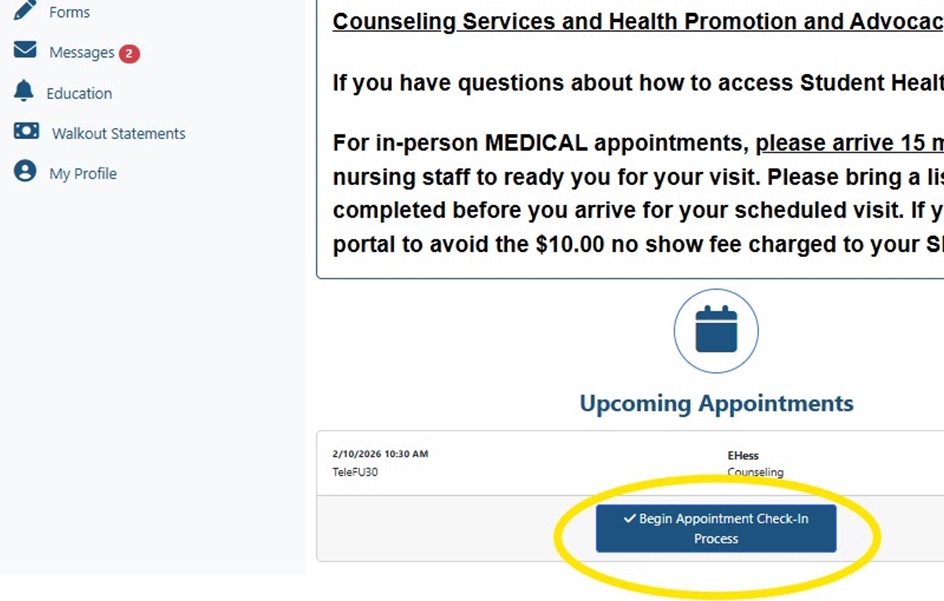
A screenshot of the patient portal, with a yellow circle highlighting the blue appointment check in button

3. When the pop-up appears, select Proceed with Check-In
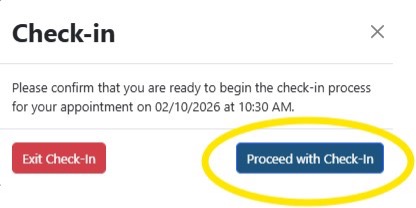
A popup window titled 'check in' with the button 'proceed with check-in' in the lower right corner

4. Review your demographic data (pulled from UWM PAWS). Check the confirmation box and click Continue.
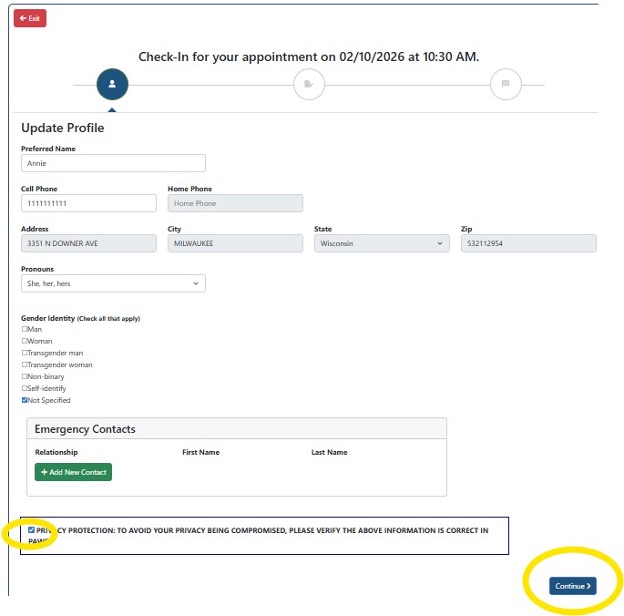
A pop up window with appointment information, reminding students to check a privacy protection box and click 'continue' at the bottom

5. Complete all required forms. Blue Underlined items must be filled out.
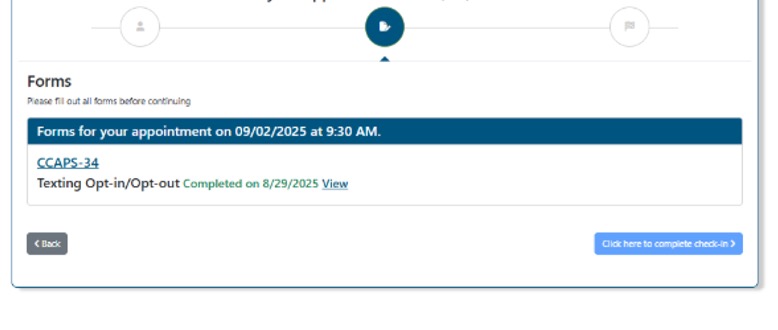
A pop up window titled 'forms' with information about forms needed to be completed before the appointment

6. When all forms show Completed on [DATE], click Click here to complete check-in.
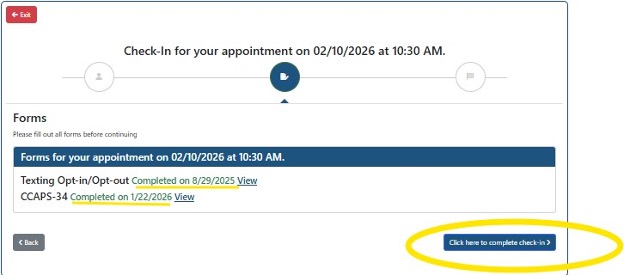
A pop up window titled 'forms' with completed forms submitted and a circle around a button that says 'click here to complete check-in' in the bottom right corner

7. A message will confirm your check-in. Select Return to Home Page.
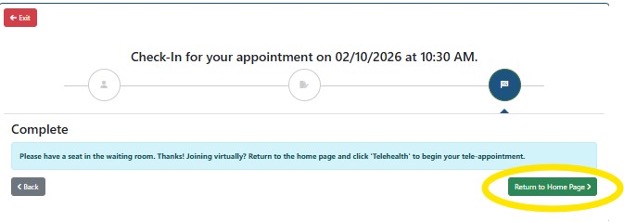
A pop up window titled 'complete' confirming a completed check in process, then prompting users to return to the home page by clicking a green button

Joining Your Telehealth Session

8. On the home page, click the yellow Telehealth button.
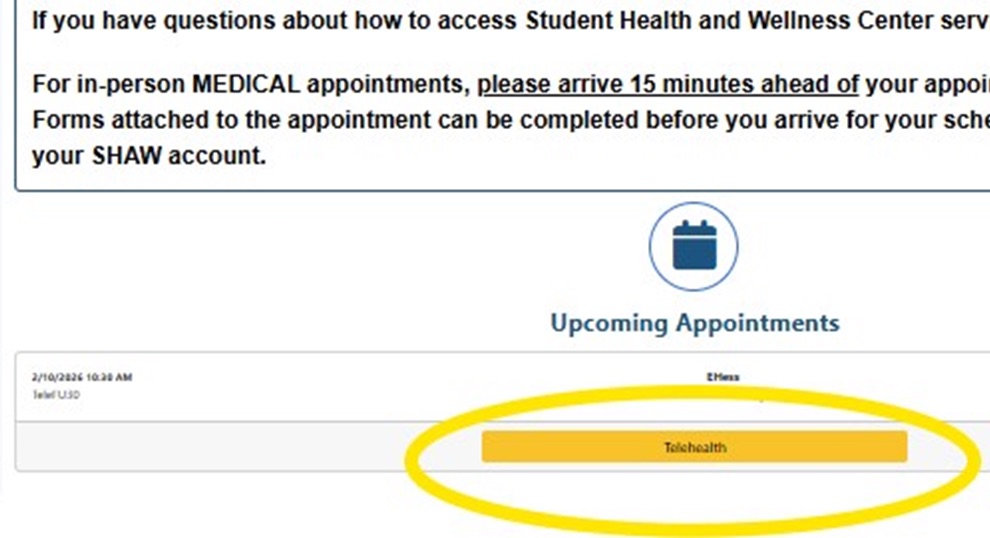
a screenshot of the patient portal home page with a circle highlighting the 'telehealth' button

9. A Microsoft Teams link will appear. Click the link to enter the virtual waiting room.
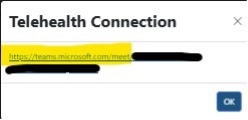
A pop up window titled 'telehealth connection' with a partial link highlighted showcasing the link students will need to click

10. Choose to join through your browser or the Teams app.
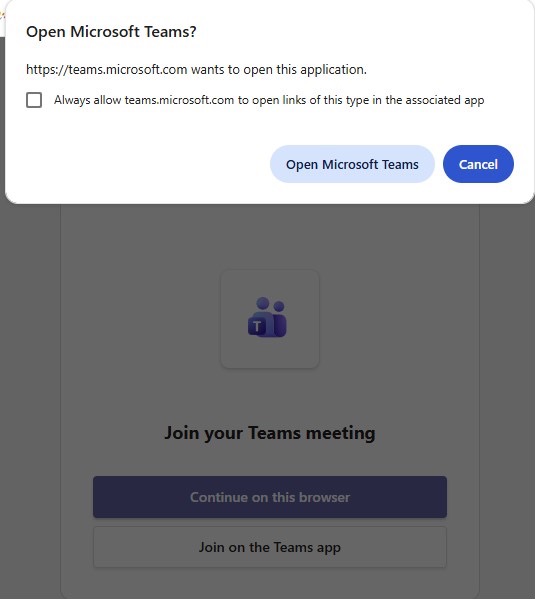
A pop up window titled 'open microsoft teams?' prompting students to open microsoft teams on their desktop

11. Your provider will admit you at your appointment time.

FAQs

  1. What if I can’t check in?
    • Try resetting your password by following the steps below. if that doesn’t work, message your provider or call 414-229-7429 option 2 for support.
  2. How do I reset my password?
    • Click Login
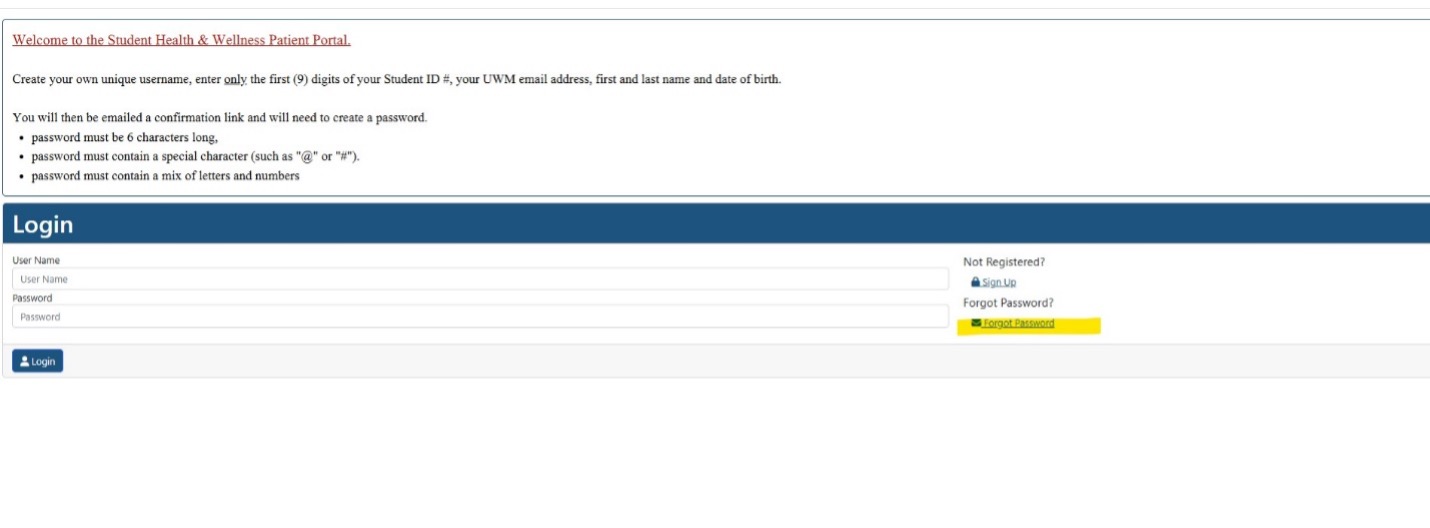
    • Select Forgot Password
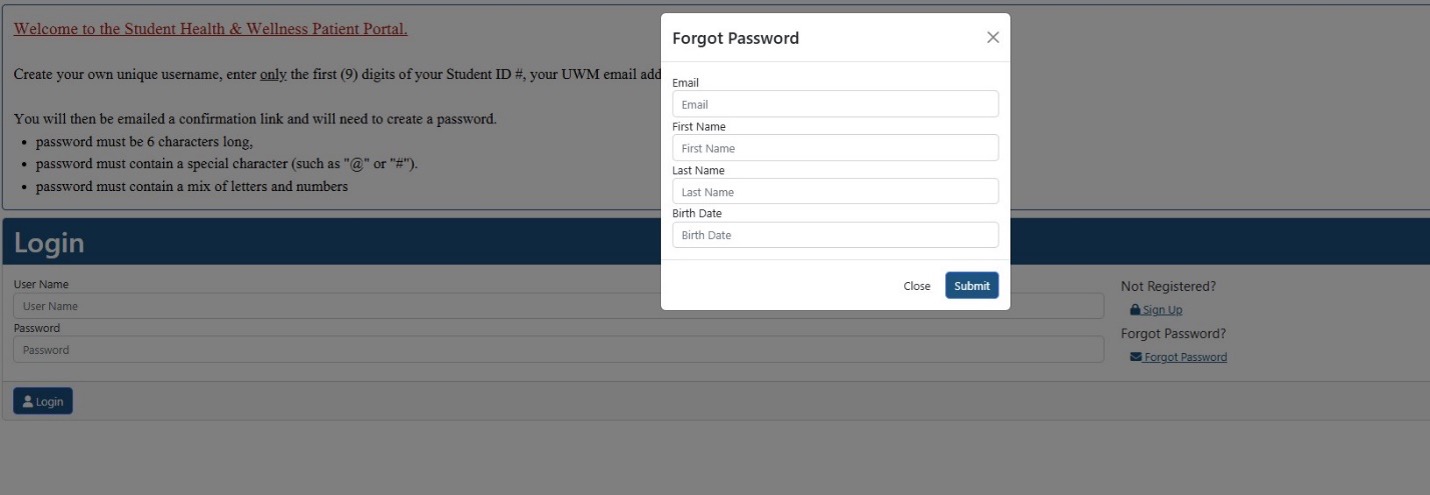
    • Enter your UWM email, first name, last name, and birth date as listed in UWM PAWS, then submit to receive a reset link.
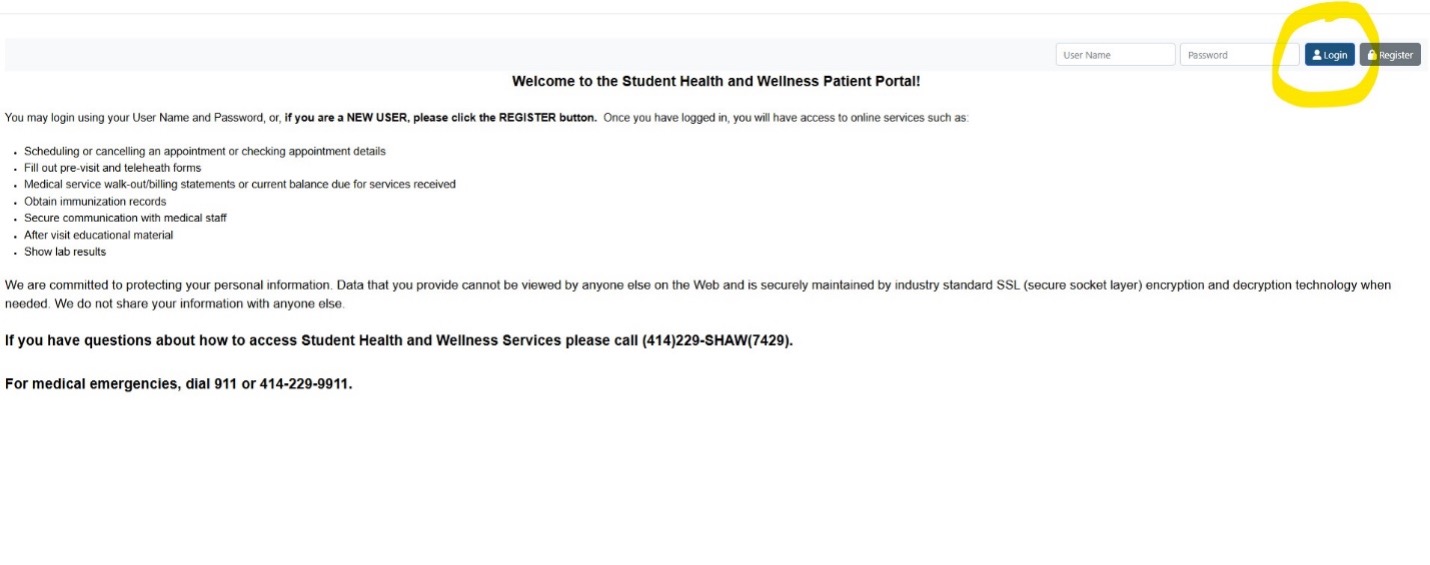
A window of the SHAW Patient Portal, showcasing steps on how to log into the portal
A screenshot of the inside of the patient portal, highlighting the "forgot password" link for students who forgot their passwords
A pop up window titled "forgot password" with fields for a student to fill out to reset their password