How Students Join a SHAW – Counseling Telehealth Session
Check-in Steps
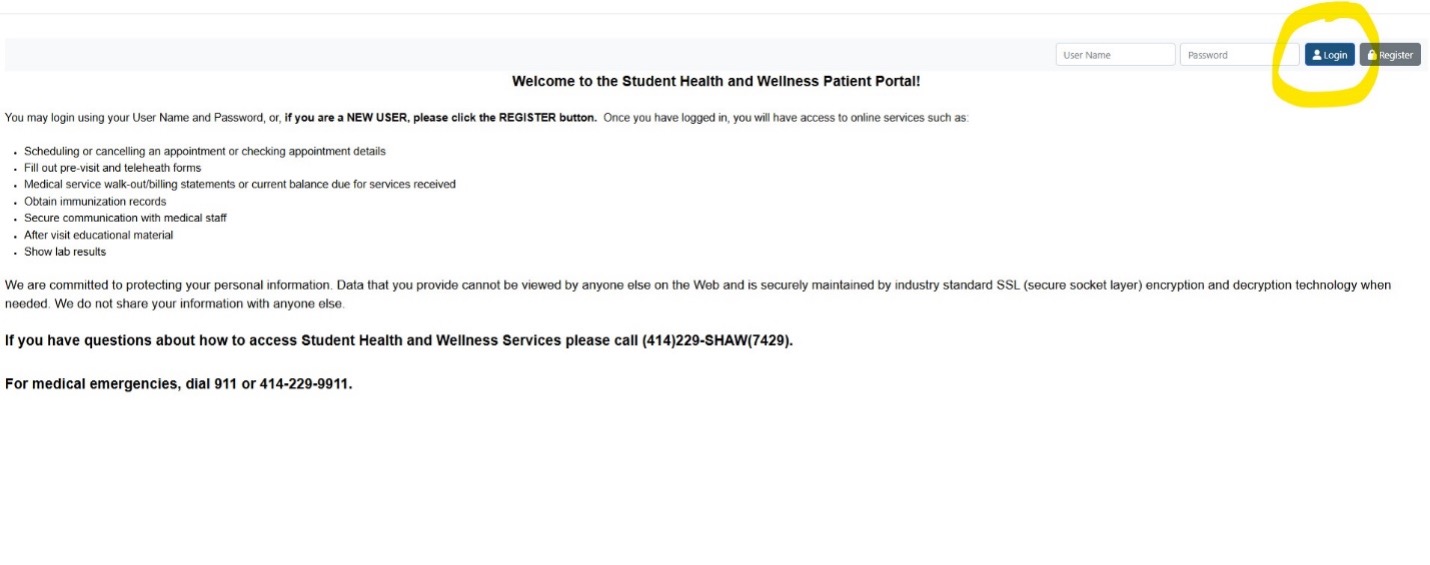
1. Log in to the UWM Student Health and Wellness Center Patient Portal (also linked on our website in the top menu bar)
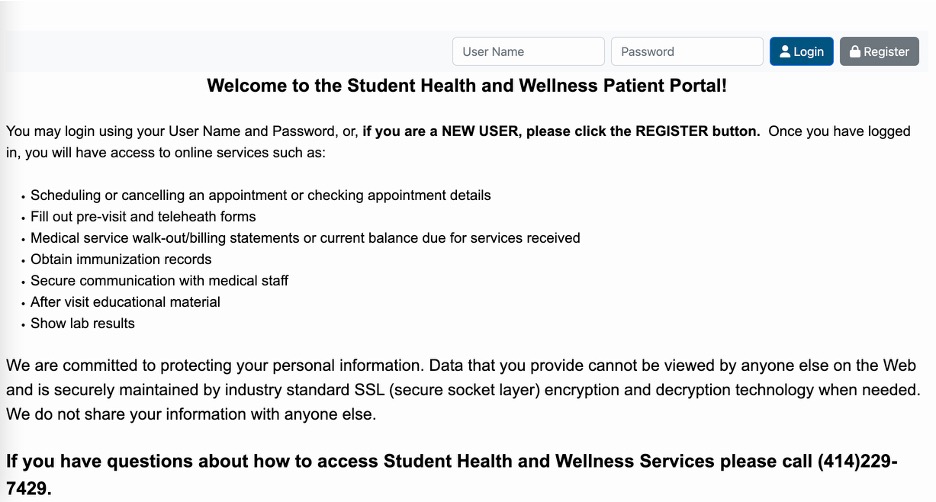
2. Click Begin Appointment Check-in Process at the bottom of the screen. The Button will appear 30 minutes before, and until 10 minutes after your scheduled tele-appointment time.
If you are more than 10 minutes late, message your provider, or call our office at 414-229-7429 option 2 to reschedule.
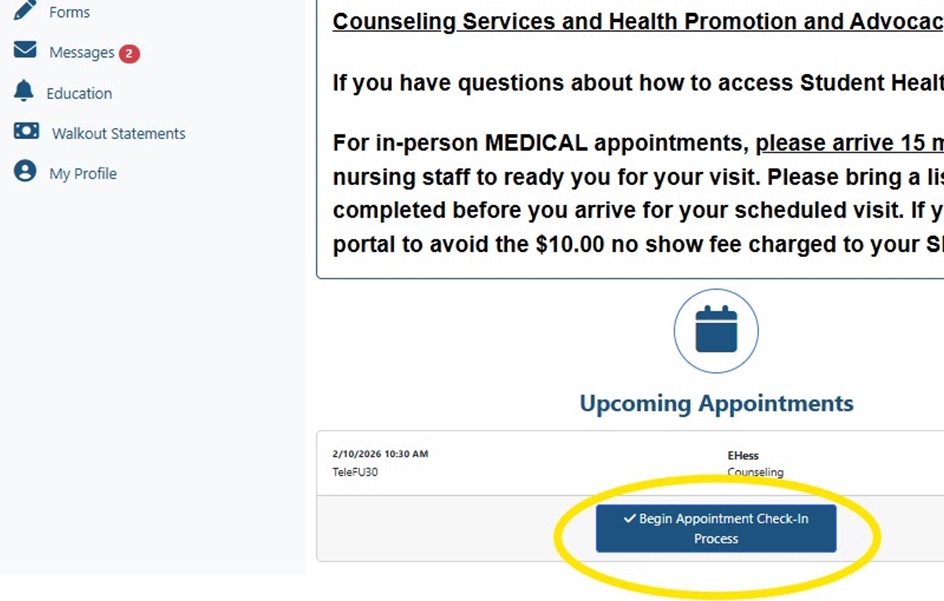
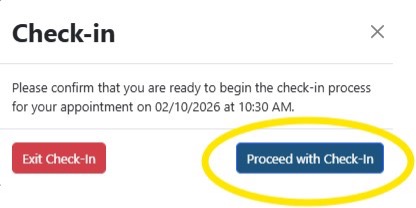
3. When the pop-up appears, select Proceed with Check-In
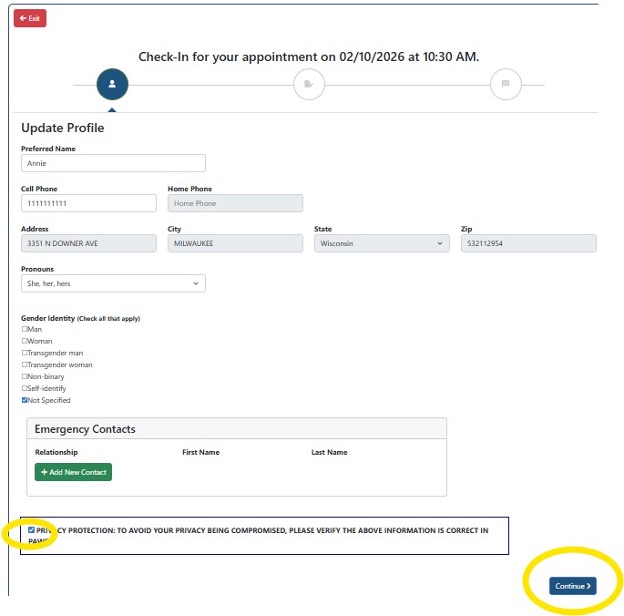
4. Review your demographic data (pulled from UWM PAWS). Check the confirmation box and click Continue.
5. Complete all required forms. Blue Underlined items must be filled out.
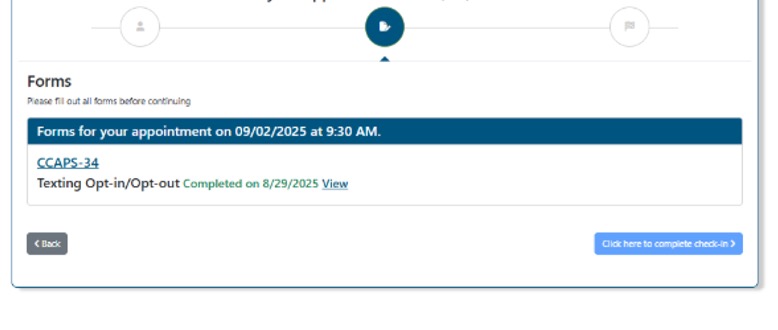
6. When all forms show Completed on [DATE], click Click here to complete check-in.
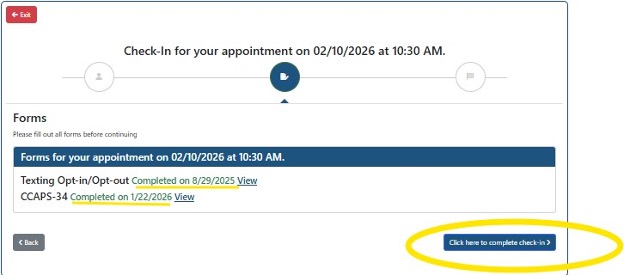
7. A message will confirm your check-in. Select Return to Home Page.
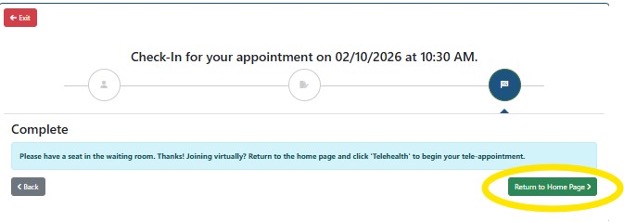
Joining Your Telehealth Session
8. On the home page, click the yellow Telehealth button.
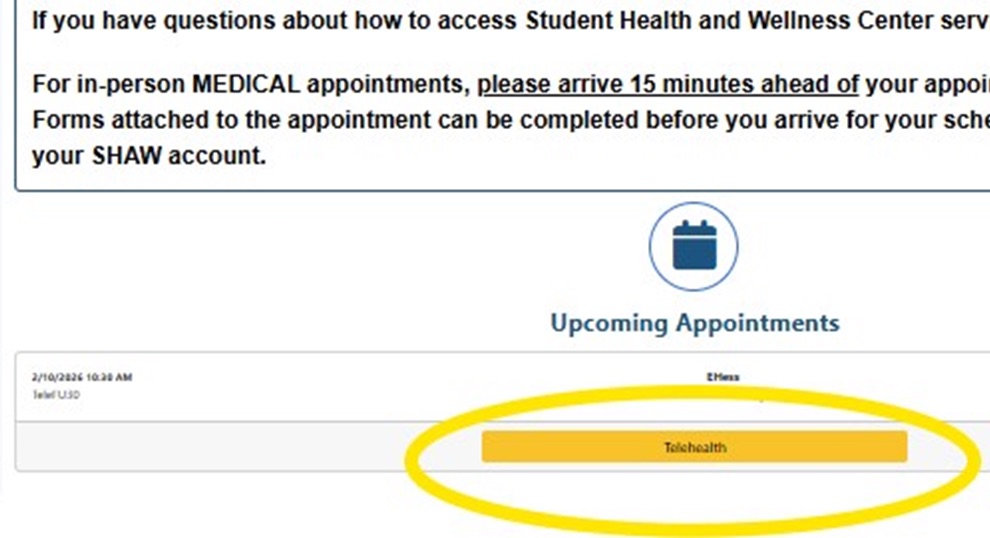
9. A Microsoft Teams link will appear. Click the link to enter the virtual waiting room.
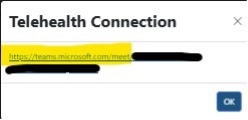
10. Choose to join through your browser or the Teams app.
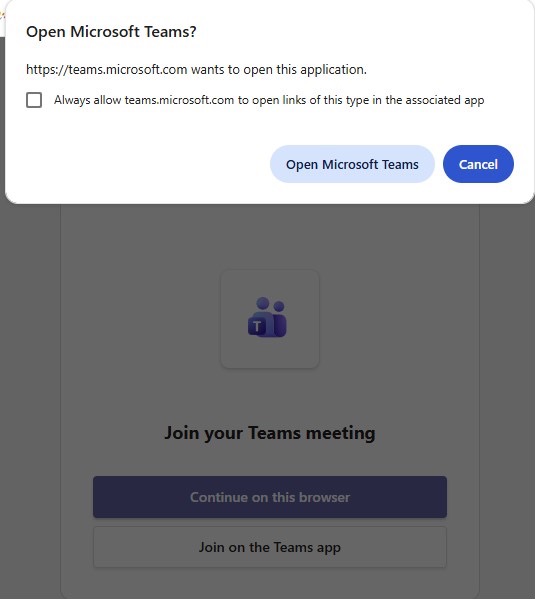
11. Your provider will admit you at your appointment time.
FAQs
- What if I can’t check in?
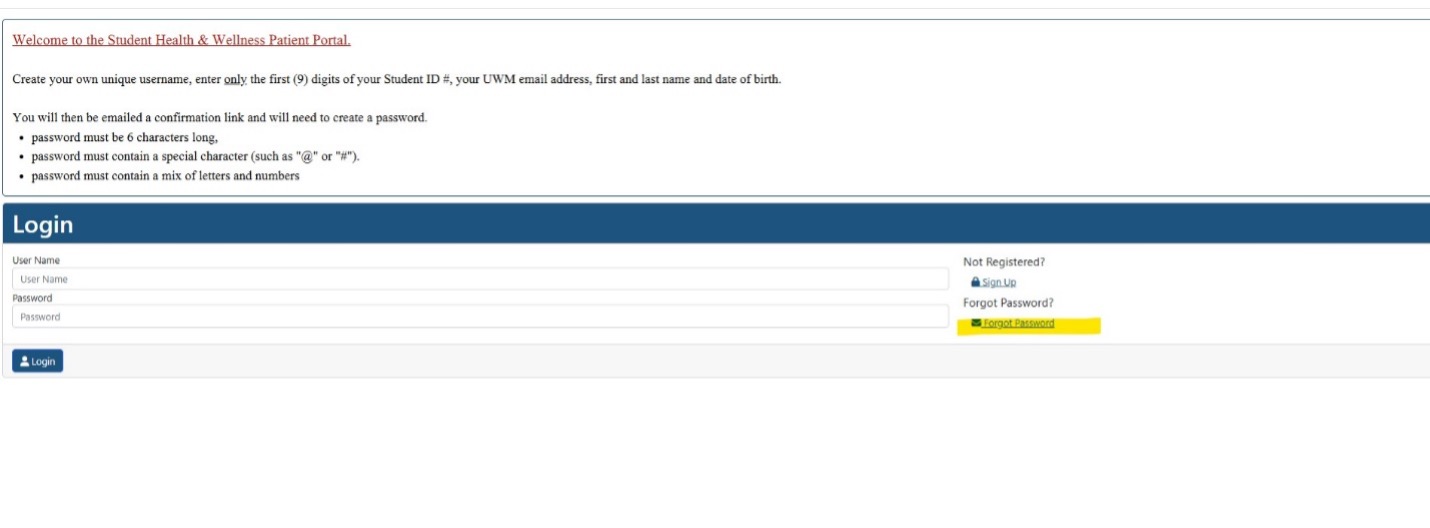
- Try resetting your password by following the steps below. if that doesn’t work, message your provider or call 414-229-7429 option 2 for support.
- How do I reset my password?
- Click Login
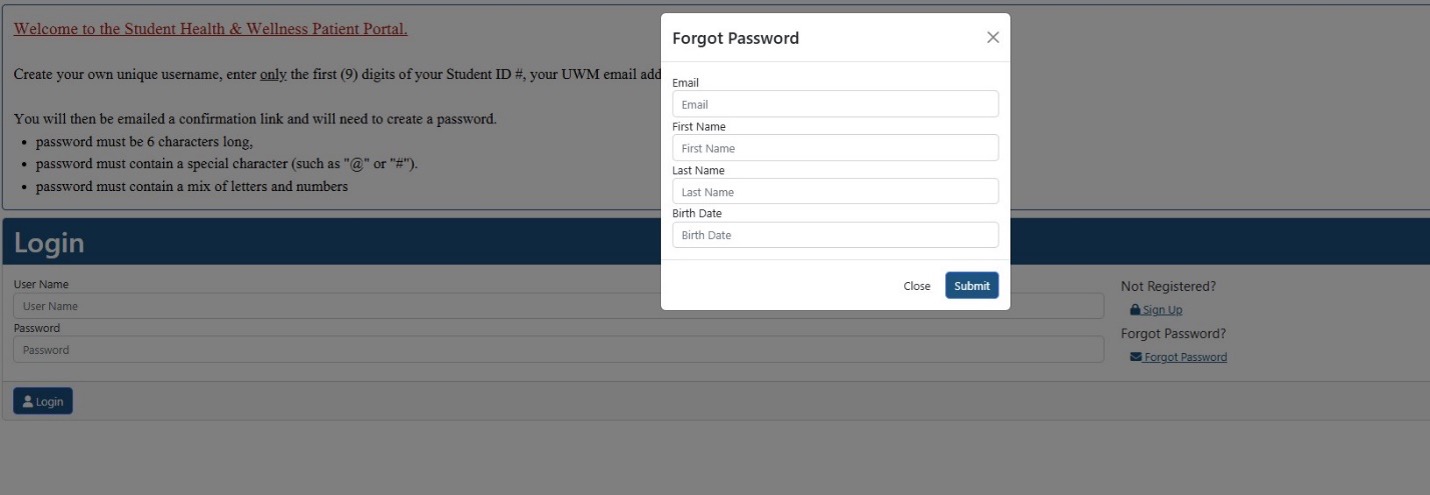
- Select Forgot Password
- Enter your UWM email, first name, last name, and birth date as listed in UWM PAWS, then submit to receive a reset link.