Self-Registration Account
Every person who wishes to take a training must have an individual PDS Online account and unique User ID. Before creating a self-registration account, please verify you do not already have a PDS Online account. Your worker/supervisor should be able to tell you. Our office is also happy to verify this.
In some cases, foster parents pursing license levels 3 or higher may need access to PDS Online in order to complete their pre-licensing requirements. The licensing worker should obtain a pre-approval form by emailing wcwpds-mke@uwm.edu before a self-registration account is created.
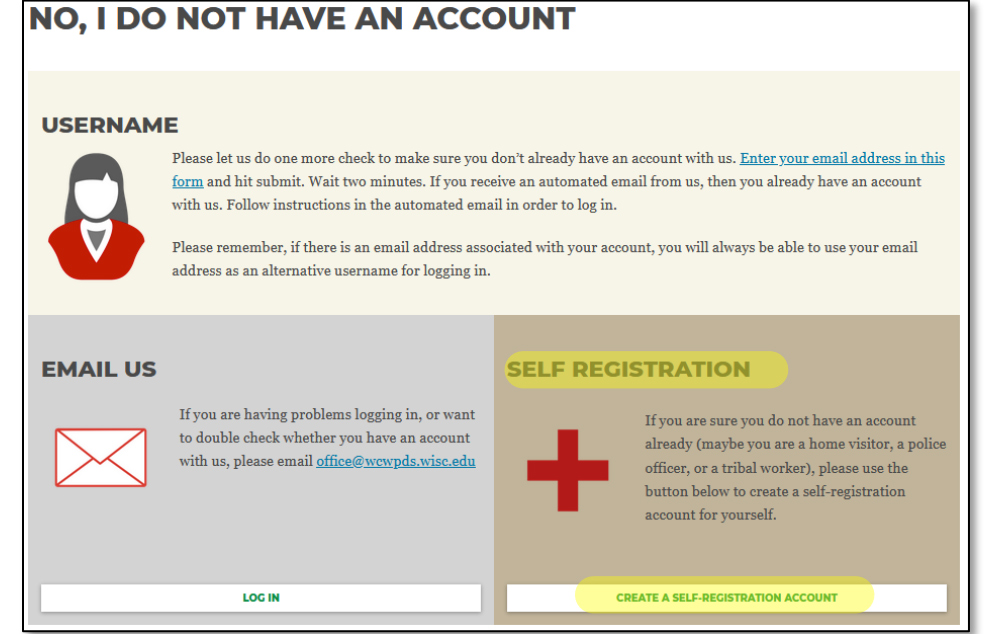
2. Once you’ve verified that you can and should create an account
3. Enter all required information. Provide your agency’s name for Employer Name and your agency’s address. Workers should user their work email address. Caregivers (foster parents, adoptive parents, and guardians) should provide the email address they deem best.
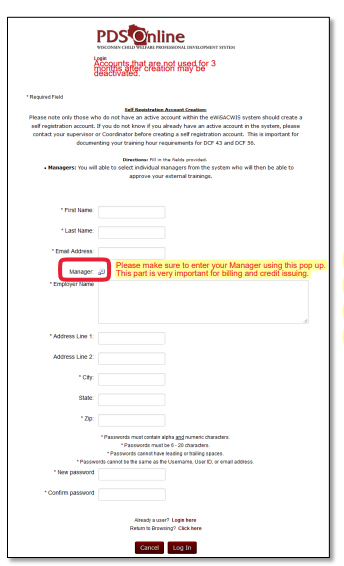
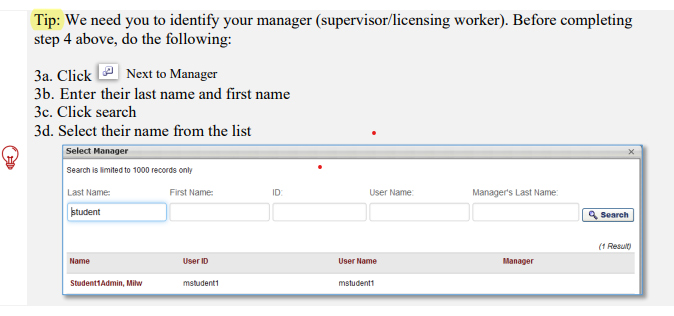
Note : Please make sure to add your manager on this screen so that we bill you as a no charge for your trainings as part of the Prevention Board team.
4. After filling in all data, click “Log In”
Answering the PDS Profile Survey
Prevention Board Members and FRC Staff
1. When you first log in, you will be taken to one of the two screens seen here. If you see the screen on the right, please click “Update my Profile” so that you are taken to the screen with two buttons (shown below).
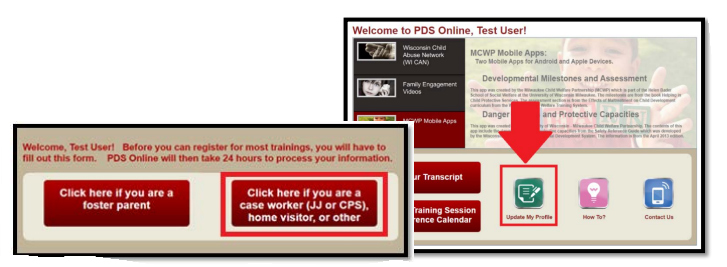
2. Click on the button for case worker, home visitor, or other and fill out the form. Submissions are uploaded to PDS Online at 3 P.M. and processing is finalized at 10 P.M. each night, so please be sure to complete your form before 3 P.M. in order to ensure your PDS Online account is ready for you the next day.
Answering the PDS Profile Survey Prevention Board Members and FRC Staff As Prevention Board Members and FRC Staff:
Please use the following information when answering your PDS Profile Survey:
- Employing Entity: Other or Private Agency
- Primary Employee Type: Family Support Program Professional
- Private Agency Name: Other – Not Listed
- Employer: Manually write your agency name, do not use abbreviations
- Current or Most Recent CPS Hire Date: Enter hire date of current position
- Org. Child Welfare Employment Hire Date: Enter Hire date of current position
3. After waiting about a business day, you can return to PDS Online to search for training sessions. Once you log in, you can check out the “How-To” guides found on the PDS Online homepage to learn how to navigate the system.