Your PAWS Student Services Center has several informational sections and self-service tools available to access. Use this document to help guide you to helpful information. Start by logging into your PAWS Account at https://uwm.edu/paws. Please note the pictures and years reflected in this document are examples from the 2025-26 aid year. While the years and terms may differ for you, the purpose of the information and steps to access it stay the same. Please contact the Student Financial Service Center with any questions.
Holds & To Do List
The right-side bar shows any Holds and To Do List items you may have. If you have any items in the Holds section, you may not be able to enroll in future semesters, so make sure to review them before your enrollment appointment. Missing information will usually show up in your To Do List Click on the “More” link or each individual item’s hyperlink for details and instructions on what is needed. If you have any To Do items needed to finalize your financial aid application, that means your file is not currently being reviewed.
Finances Section
The “Finances” section in the center of your PAWS home screen is where you will find Billing and Financial Aid information.
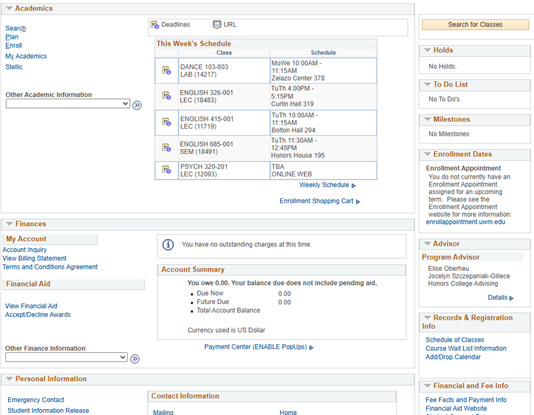
View Billing Statement
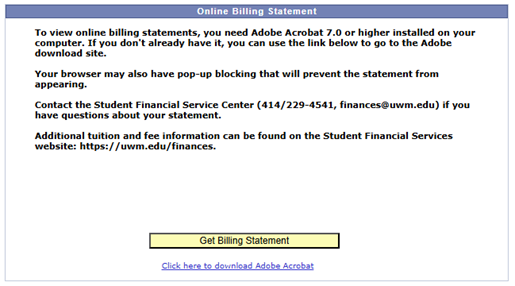
The Online Billing Statement is a real-time snapshot of your current charges and any pending financial aid. You can access it anytime by following the steps below.
1. Click on “View Billing Statement.”
2. On the next screen, click “Get Billing Statement.” Be sure to enable pop ups to view the statement. You may see an Anticipated Balance Due or an Anticipated Credit Balance (CR) on your statement. Anticipated Credit Balance (CR) means you currently have more aid than charges. If your charges are listed in full, you can anticipate the excess will be sent to you via check or Direct Deposit, if you have signed up.
Account Activity
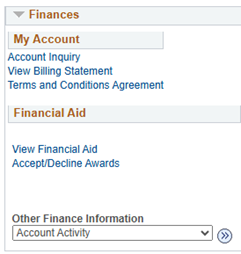
While the Billing Statement shows future activity, Account Activity is the best place to see historical finance information. You will use the drop-down menu to select and access it.
Once there, you can edit the date range and filter your charges and payments by term.
Making a Payment
Online payments can be made in the Payment Center on PAWS. Be sure to enable pop-ups to access it. You can avoid convenience fees by paying via electronic check, using the routing and account number of a checking account. If you are unable to pay in full, consider a Payment Plan. Find more information about payment options at uwm.edu/finances.
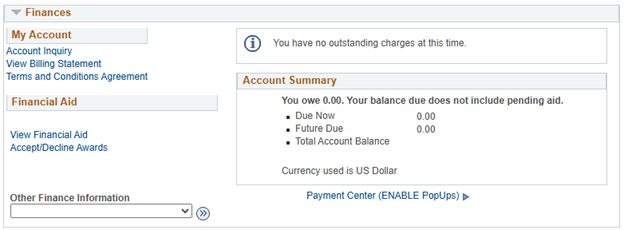
View Financial Aid
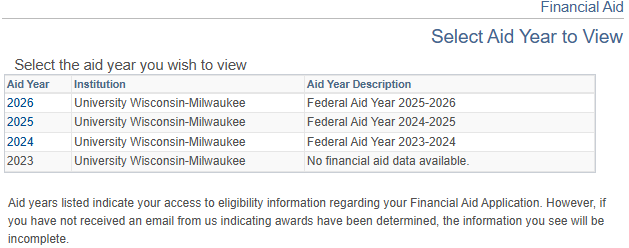
Once you click on the “View Financial Aid” link, you will be asked to select an aid year to view. At UWM, the aid year starts in Fall, then proceeds through the Winter and Spring terms, and ends with the Summer term. For example, Aid Year 2026 starts with the Fall of 2025 and ends with the Summer of 2026.
If you do not see the aid year you are looking for yet, we may still be processing your aid offer. Make sure you have submitted your FAFSA, do not have any items in your To Do list, and check your e-mails for any update from Student Financial Services.
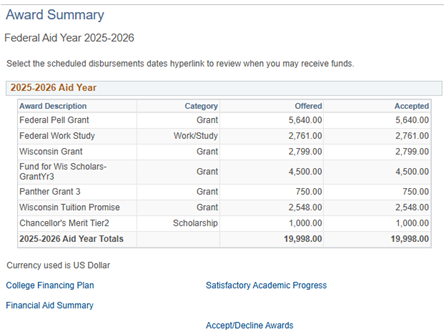
Financial Aid Summary & Cost of Attendance
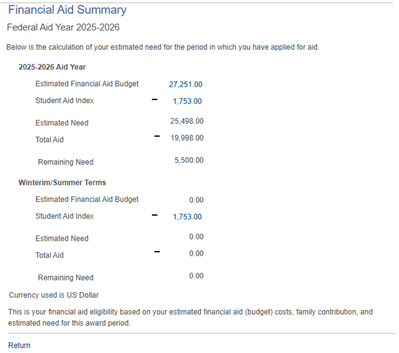
Your financial aid eligibility is determined in part by a calculation of your “estimated need.” The Financial Aid Summary shows you that calculation.
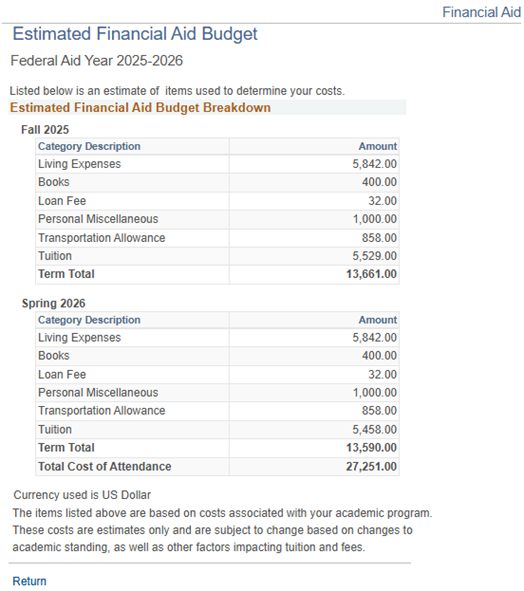
You can see details of your Estimated Financial Aid Budget and Student Aid Index by clicking on the hyperlinked numbers.
Keep in mind the budget is an estimate of your annual expenses, determined by student averages and federal guidance. As such, it includes both direct to UWM charges such as living expenses (housing and meal plan) and tuition, as well as indirect charges you may incur such as the cost of books, or other miscellaneous educational supplies. You can use the UWM Total Cost Estimator to customize your expected costs and get a better understanding of your potential charges.
Accept/Decline Awards
While you can view financial aid offered to you in the Financial Aid Summary section, you must click the “Accept/Decline Awards” link to accept the aid offered.
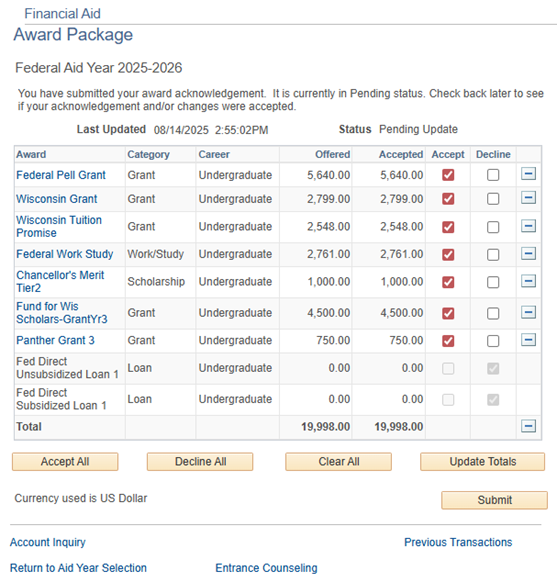
It is important to click through each hyperlinked aid type to see details and eligibility requirements that particular offer may have. For example, the Federal Pell Grant description looks like this:
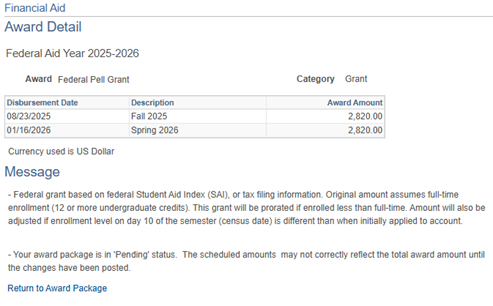
After reviewing your aid messages, accept, reduce, and/or decline any funds offered to you. To accept or decline funds, click on the check box next to each item. Be sure to click “Submit” to finalize your acceptance. If you with to accept a partial amount, first click the “accept offer” checkbox. You will see a fillable field open for you to indicate how much you would like to accept. Keep in mind, If the aid is offered for two semesters, this amount will be split in half equally across the fall and spring semesters.
You have 30 days from the date the aid is posted or until June 1 before the academic year, whichever is later, to accept your aid. If you have not accepted your aid by then, it may be cancelled. If you decline or we cancel your aid, you are able to request to have it re-offered as long as funds remain and you are still eligible.
Notify the Student Financial Service Center if you are graduating in December or will not be enrolling in a term in which you were offered financial aid.